Advanced Features
Open a module from mobile Home
Open Assets from the mobile module tiles and return to Home.
Overview
Use the mobile Home page to reach equipment lookup without opening the full desktop interface. This walkthrough follows the Assets tile and the Home navigation control.
Before You Start
- Sign in to SeaVesselManager and open /m on your installation.
- Your account needs access to Assets. The screenshots use an approved demo superadmin account at a 430 by 932 viewport.
Step-by-Step Instructions
-
Choose Assets on Home
On mobile Home, locate the Assets tile with the subtitle Equipment lookup and status.
Choose Assets.
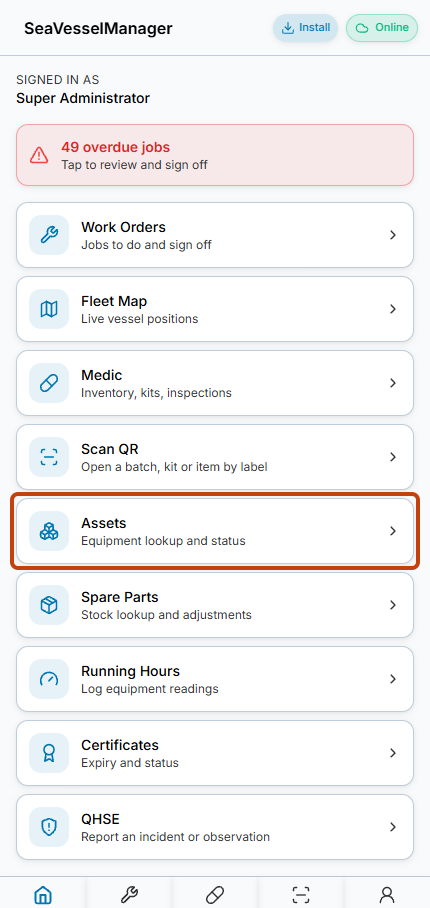
The Assets tile opens equipment lookup from mobile Home. -
Confirm the module and return Home
Confirm that the page heading changes to Assets and equipment cards appear.
Choose the Home icon at the far left of the bottom navigation to return to the module tiles.
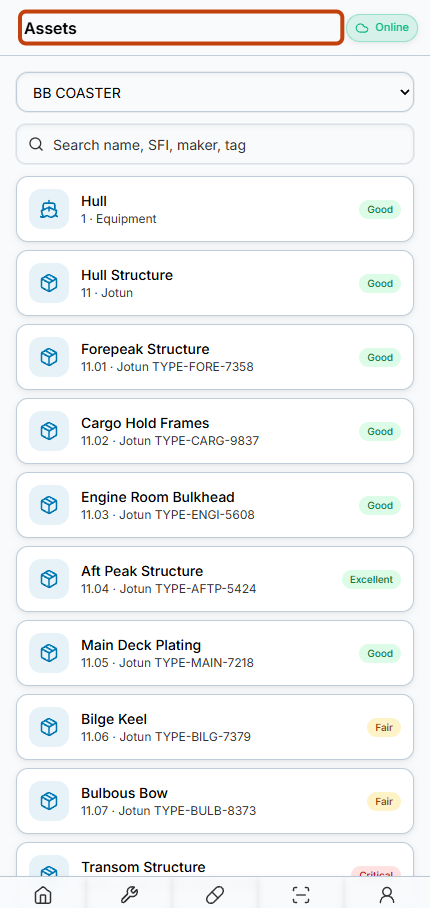
The Assets heading confirms that the equipment module has opened.
Result
You can open Assets from mobile Home and return to the Home module list.
FAQs
Does this guide verify every module on Home?
No. It verifies the Assets navigation path and the return to Home. The related guides cover specific additional read-only tasks.