Advanced Features
Filter and search mobile work orders
Find work orders by vessel, status, title or WO number in the mobile list.
Overview
Narrow the Work Orders list before choosing a job. The verified example searches BB COASTER jobs and then switches the list to BB OCTOPUS; substitute your own accessible vessels and existing work order names.
Before You Start
- Open mobile Home while signed in with maintenance viewing access.
- Have an existing work order title or number to search. Multiple accessible vessels are needed to follow the vessel-switching example.
Step-by-Step Instructions
-
Choose a vessel and narrow the list
Choose Work Orders in the bottom navigation.
Use the vessel selector to choose the vessel you want to review. The example uses BB COASTER.
Choose a status chip. Active, Overdue, Open, In progress and All were each exercised in verification.
For the pictured example, choose Open and enter Radar Performance in Search title or WO number. The matching Radar Performance Check card remains.
You can replace the title search with the existing WO number; WO-BBC-2094 returned the same card in the demo.
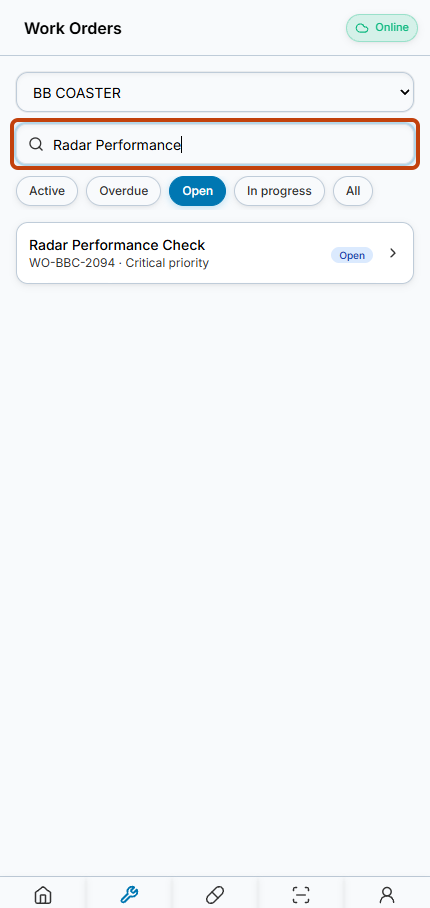
The title search leaves one Open Radar Performance Check work order for BB COASTER. -
Switch to another vessel
Clear the search field before reviewing a different vessel.
Choose another vessel from the selector. The example switches to BB OCTOPUS while Open remains selected.
Check the refreshed work order cards and their numbers to confirm the list changed.
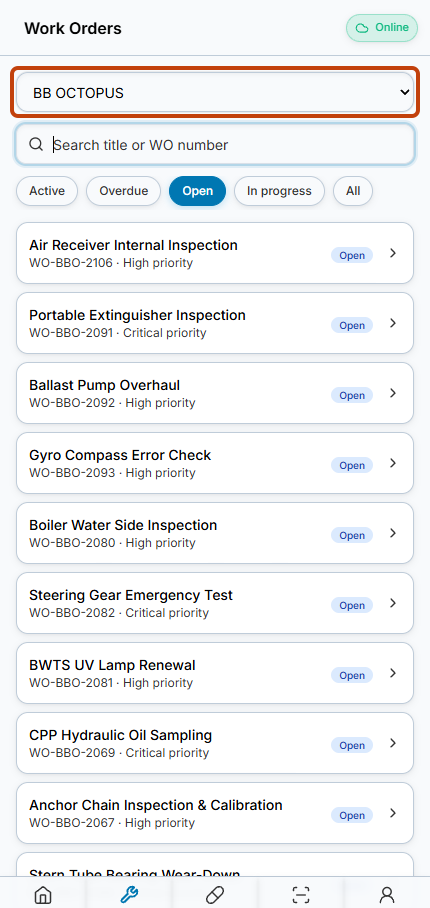
Changing the vessel to BB OCTOPUS replaces the visible Open work order cards.
Result
The mobile list shows jobs matching the selected vessel, status and search text. This task does not open, edit or sign off a work order.
FAQs
Did this test complete or sign off any work orders?
No. Verification was limited to list filters, title search, number search and changing the vessel selector.