Advanced Features
Find equipment and view its mobile details
Search equipment by name and open its condition and identifying facts.
Overview
Use Assets to look up an existing equipment record for a vessel. The verified example opens Auxiliary Engine No.1 on BB COASTER without changing the record.
Before You Start
- Sign in with Assets viewing access and open mobile Home.
- Know the vessel and the name of an existing equipment record.
Step-by-Step Instructions
-
Search for the equipment name
Choose Assets from Home.
Select the vessel if a vessel selector is displayed. The example uses BB COASTER.
Enter the equipment name in Search name, SFI, maker, tag. Entering Auxiliary Engine No.1 returned one matching card in the demo.
Check the name and condition badge before choosing the matching card.
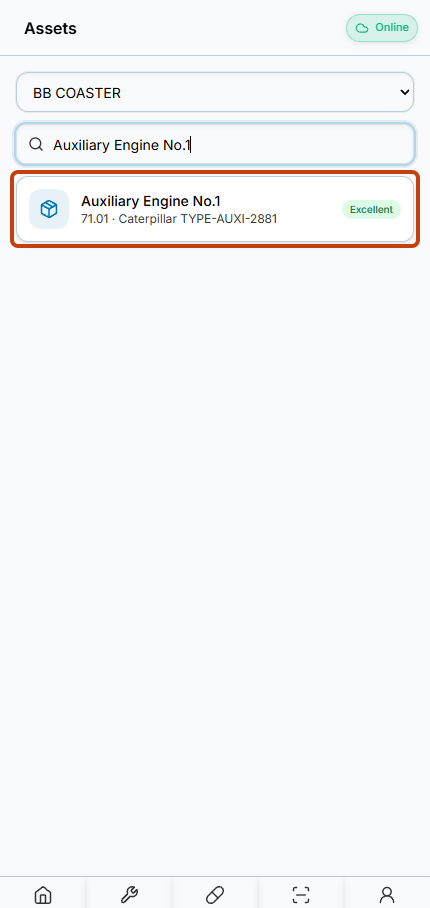
Searching Auxiliary Engine No.1 leaves one matching equipment card for BB COASTER. -
Read the equipment details
Choose the matching equipment card.
Confirm the equipment name at the top of the detail page.
Review the condition and the available identifying facts below the heading. Missing facts are not shown.
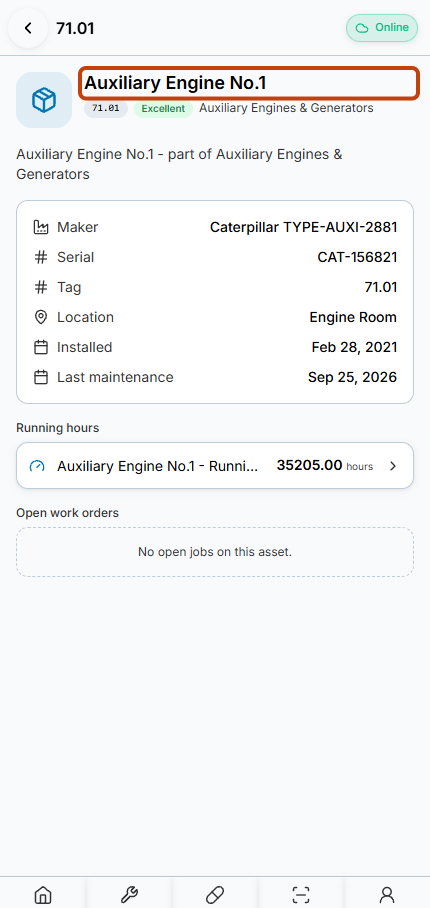
The equipment detail heading confirms Auxiliary Engine No.1 is open.
Result
The selected equipment record is open and its visible condition and facts can be reviewed without an edit.
FAQs
Why can my detail page show fewer facts than the example?
The mobile detail screen only displays identifying facts that are present on that equipment record.