Advanced Features
Open an equipment link from Scan QR
Use the manual code-link field to open a known mobile equipment URL without a camera.
Overview
Scan QR includes a manual link field. This walkthrough verifies opening an existing same-origin equipment detail URL through that field; it does not scan a QR image or start a camera.
Before You Start
- Sign in and have viewing access to the equipment record.
- Have a known working equipment detail link from the same SeaVesselManager installation. It should use the mobile /m/assets/ path followed by the actual record ID.
Step-by-Step Instructions
-
Paste the known mobile equipment link
Choose Scan QR in the bottom navigation.
Leave Start camera untouched.
Paste the equipment detail URL into Or paste a code link. Use your own installation's URL and an existing record, not the demo URL shown in the screenshot.
Choose Open.
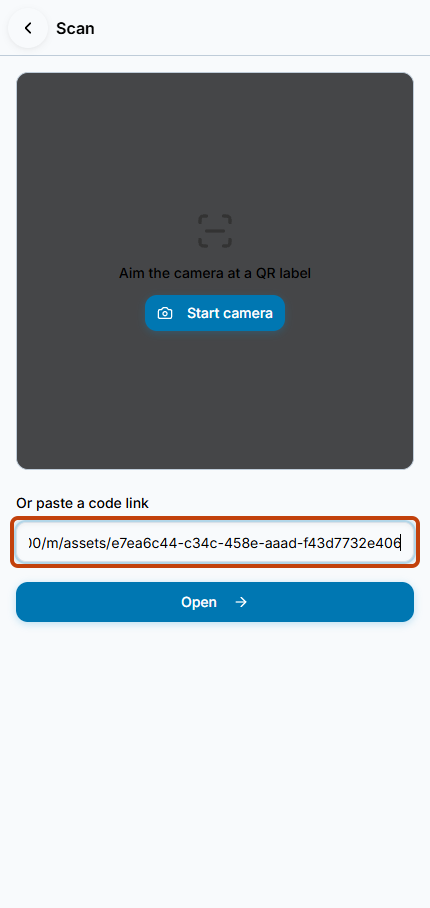
Or paste a code link accepts the known mobile equipment URL without starting the camera. -
Confirm the equipment destination
Check the equipment name after navigation.
In the verified example, the link opens Auxiliary Engine No.1, matching the equipment that had already been opened from Assets.
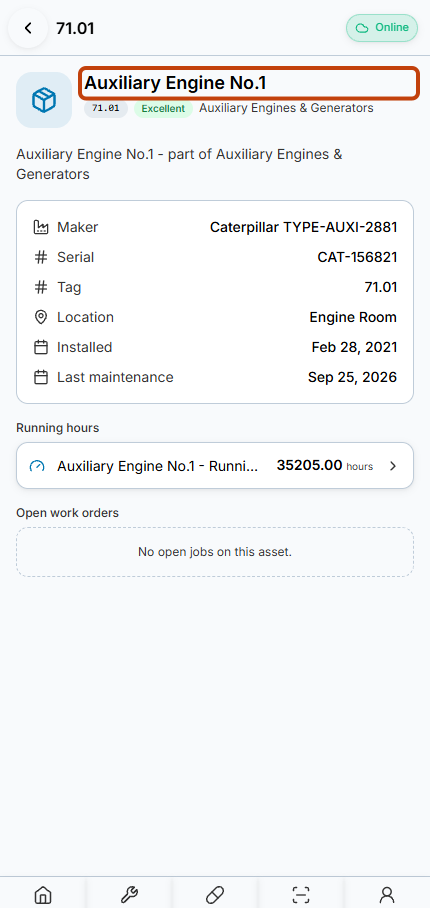
Open reaches the same Auxiliary Engine No.1 detail record as the equipment list.
Result
The manual code-link field opens the known equipment record without camera use or record changes.
FAQs
Does this confirm that the QR camera scanner works on my phone?
No. This guide verifies only the manual link fallback. Camera permissions, capture and decoding require separate testing on the actual device.