Spare Parts & Inventory
Find linked spare parts by name and supplier
Combine the spare-part search with a Supplier column filter for one vessel.
Overview
Use Linked Spare Parts to search parts already linked to equipment. Start by loading All Assets for the selected vessel, then narrow the rows by a part name and supplier without changing inventory.
Before You Start
- Sign in to SeaVesselManager with vessel viewing permission (modules.vessels.view) and view access to the vessel.
- Have Inventory view (modules.inventory.view), or both Spare Parts view (modules.spare-parts.view) and Assets view (modules.assets.view). The page and equipment data have separate permission checks.
- The vessel must already have equipment with linked spare parts. The screenshots use BB COASTER and existing Aeration Blower parts.
Step-by-Step Instructions
-
Load the vessel's linked parts
Open Spare Parts at /spare-parts. The page heading is Linked Spare Parts.
Choose your vessel in Vessel; the example uses BB COASTER.
Click All Assets in SFI Structure and wait for the spare-part rows to load. The example loads 672 linked parts.
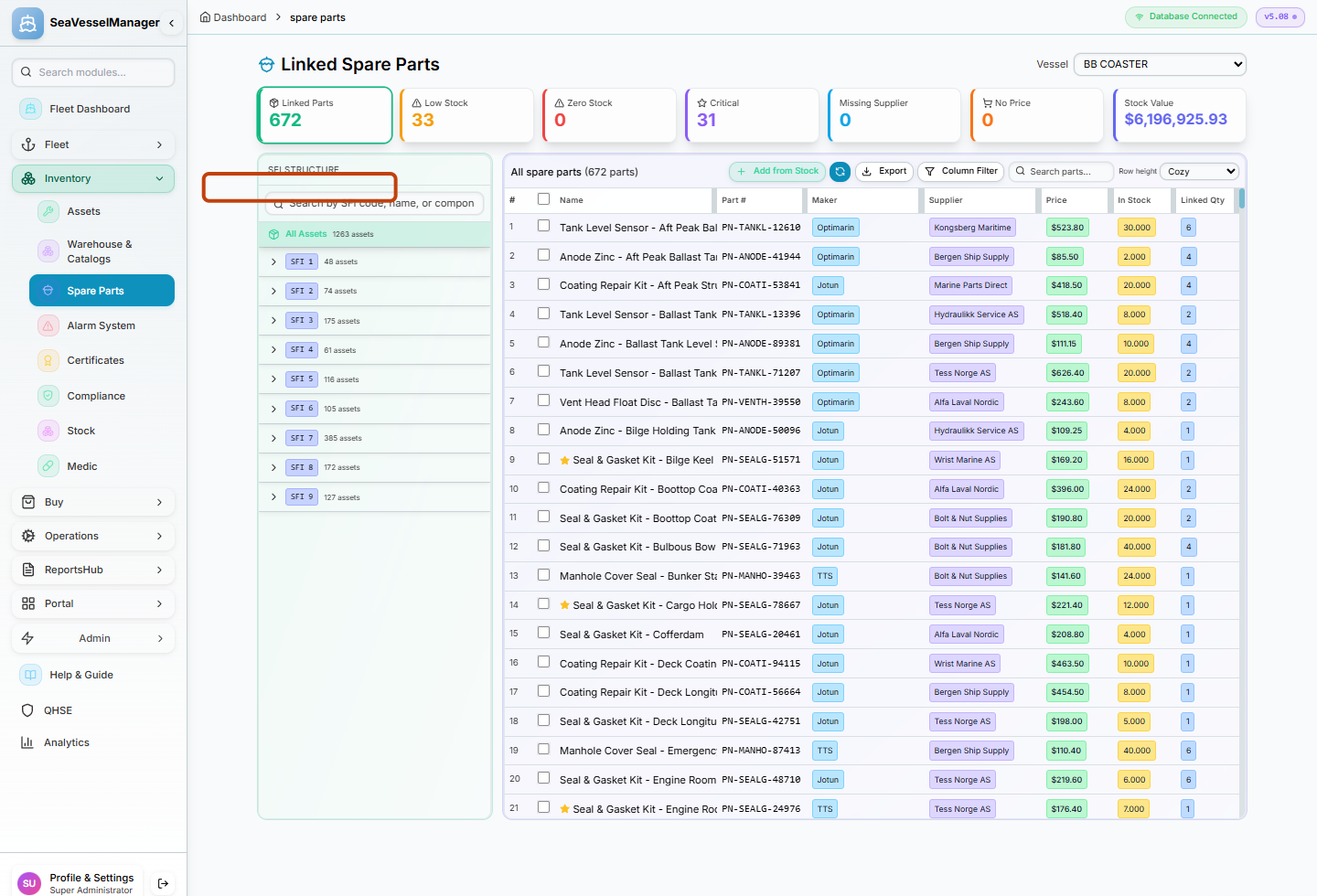
Load a vessel's linked parts before searching the table. -
Search for a part family
Enter Aeration Blower in Search parts... above the right-hand table.
Review the matching Name, Part #, Maker and Supplier values. This example narrows the list to six parts.
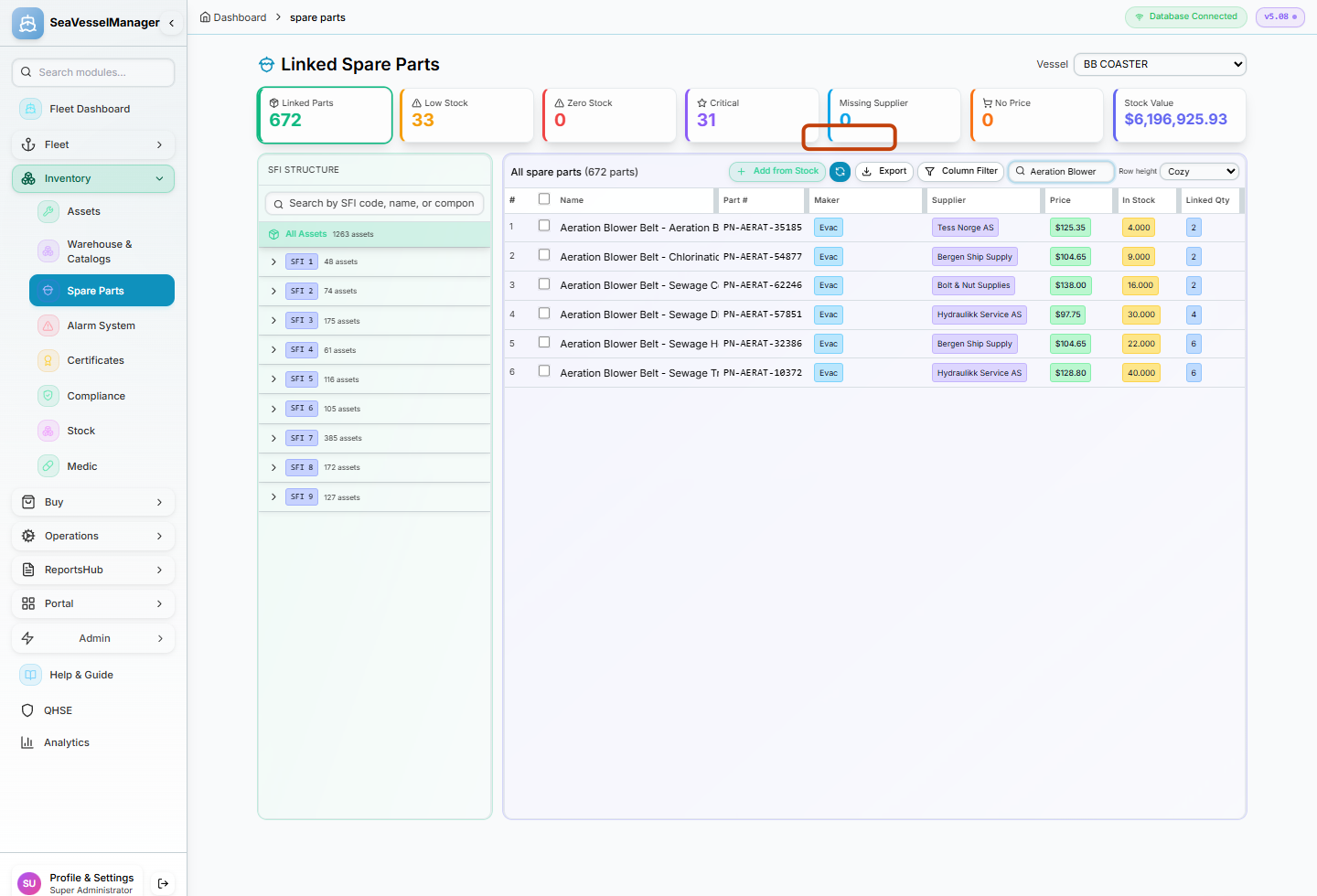
The part search narrows the loaded list, not the SFI tree. -
Add a supplier filter
Click Column Filter to show the filter inputs below the column headings.
Enter Bergen in Filter Supplier... while leaving Aeration Blower in Search parts.... The example now shows two Bergen Ship Supply parts.
To restore the list, clear Filter Supplier... and then clear Search parts....
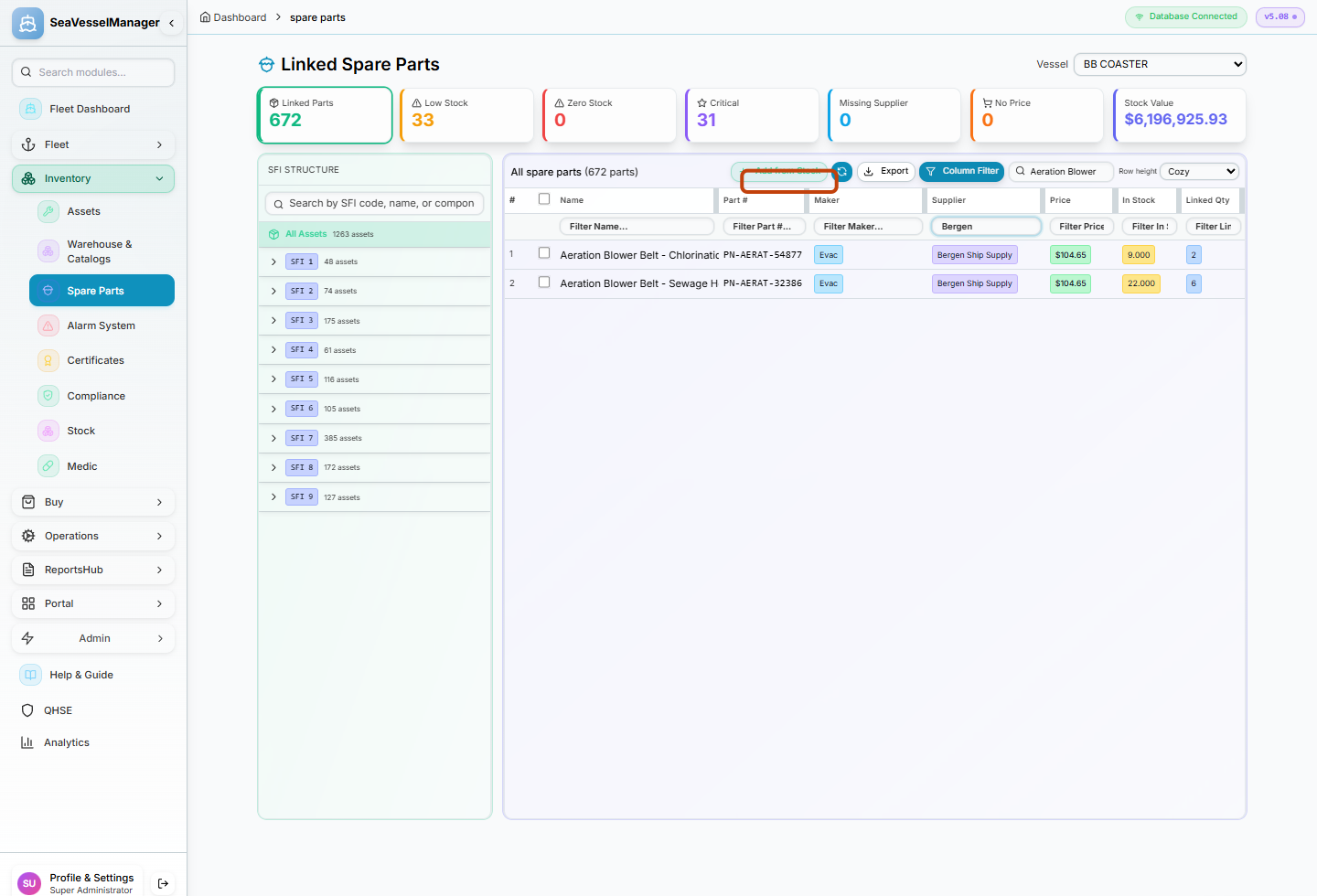
The Supplier filter combines with the part search.
Result
The table contains linked parts matching both your part search and Supplier filter. Clearing both inputs restores the loaded vessel list.
FAQs
Why does the heading still show 672 parts after I search?
The heading and Linked Parts summary describe the loaded set. Search and column filters narrow the displayed rows without changing that loaded set.
What should I do when the page says Select an SFI group to view parts?
Select All Assets or an SFI group to load linked parts. If you already selected a scope, clear the part search and column filters before choosing another scope.