Spare Parts & Inventory
Browse the spare parts linked to one equipment item
Navigate the SFI structure and inspect the existing spare link and linked quantity for one component.
Overview
Select a specific equipment item in Linked Spare Parts to replace a group-wide list with that item's existing spare links. This is a viewing workflow; it does not create or modify a link.
Before You Start
- Sign in with modules.vessels.view and view access to the selected vessel.
- Have modules.inventory.view, or both modules.spare-parts.view and modules.assets.view, to open the page and load the equipment tree.
- Use a vessel with an existing SFI equipment hierarchy and spare links. The example uses BB COASTER and 96.04 — Aeration Blower.
Step-by-Step Instructions
-
Expand the equipment's SFI branch
Open Spare Parts at /spare-parts and choose BB COASTER in Vessel, or choose your own vessel.
In SFI Structure, expand SFI 9, then SFI 96, then SFI 960. Scroll inside the tree if necessary.
Locate 96.04 — Aeration Blower. Use the equivalent SFI branch for your equipment.
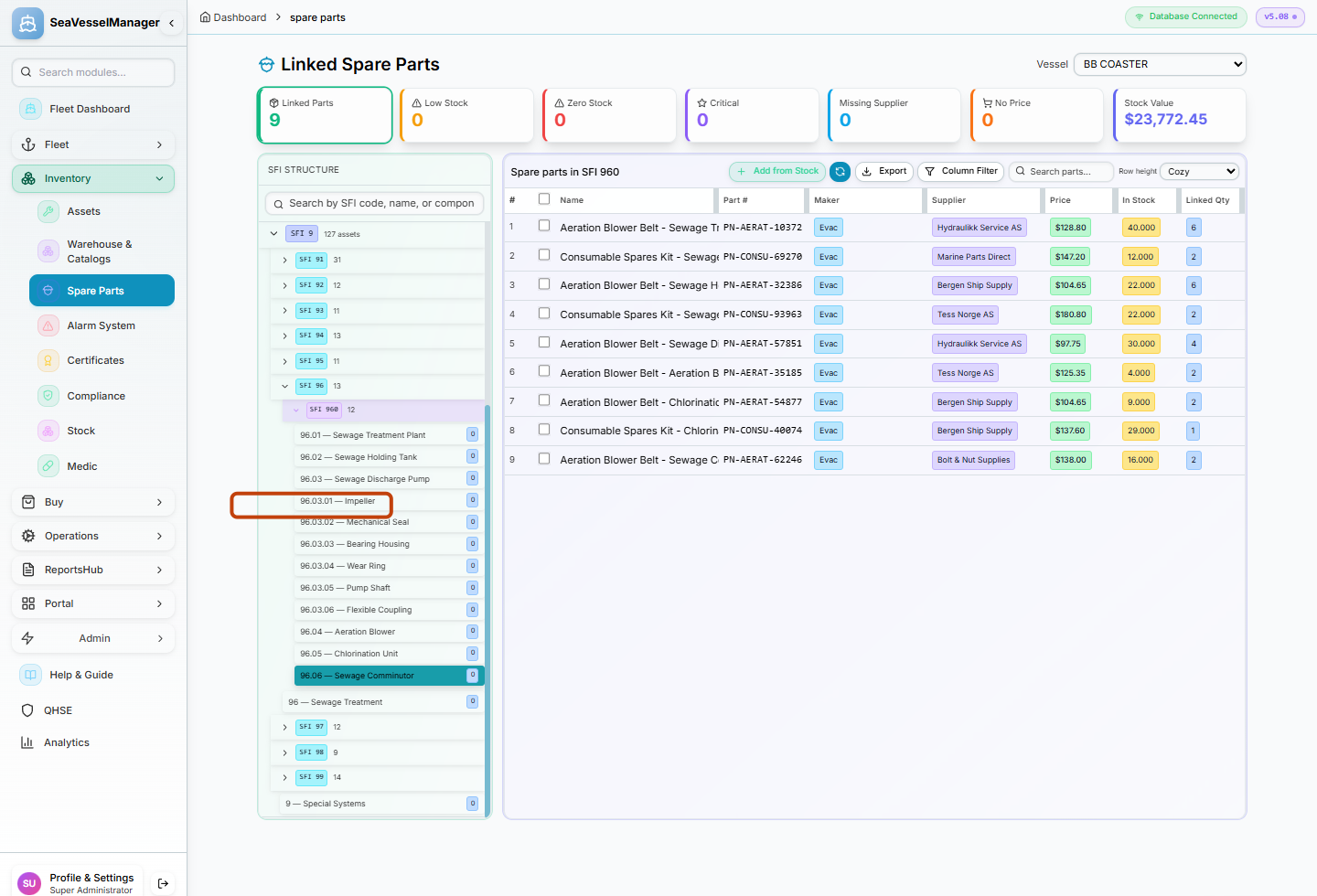
Navigate to the individual equipment row, rather than stopping at the SFI group. -
Select the equipment and read its linked spare
Click 96.04 — Aeration Blower.
Confirm the table heading changes to Spare parts on Aeration Blower.
Read Part #, In Stock and Linked Qty. The example shows PN-AERAT-35185 with 4.000 In Stock and Linked Qty 2.
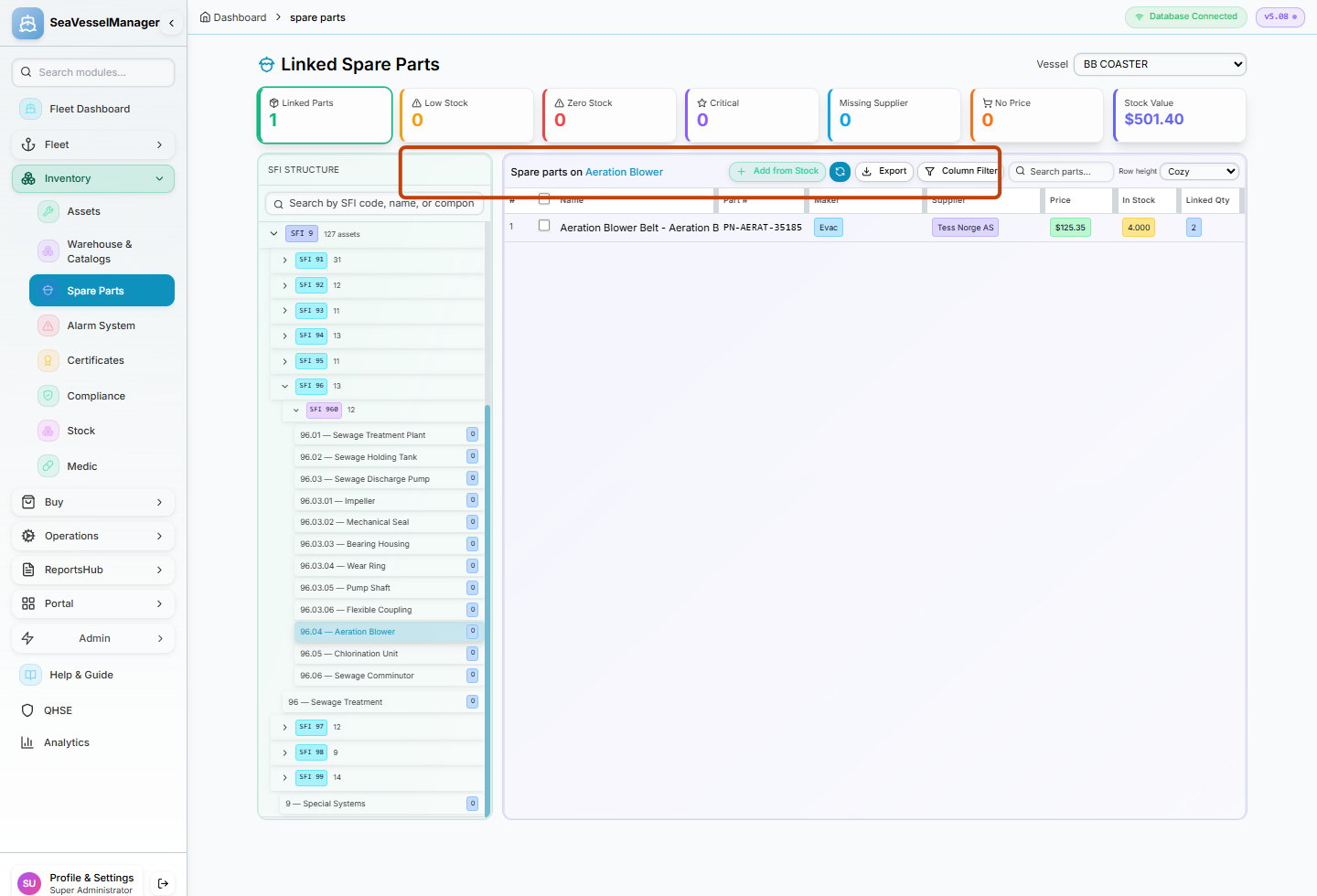
The selected equipment has one existing spare link in this example.
Result
The spare table is scoped to the selected equipment and displays its existing linked parts and quantities.
FAQs
Does selecting an equipment row create a spare link?
No. Selecting equipment reads its existing spare parts. Add from Stock is a separate action and is not part of this guide.