Fleet Management
Use the Fleet Dashboard
Read the fleet dashboard, switch view modes, and understand the KPI counts.
Overview
The Fleet Dashboard at / is the landing page after sign-in. It shows high-level fleet KPIs and vessel cards or a grid. This guide reads the dashboard without opening a vessel detail or changing filters.
Before You Start
- Sign in to SeaVesselManager and reach the dashboard.
- Use an account that has permission to view the fleet overview.
Step-by-Step Instructions
-
Read the fleet KPI cards
After signing in, the Fleet Dashboard loads at /.
Look at the KPI counts for Active Vessels, In Port, Underway, and other status groups.
Read the summary numbers at the top and the filter labels.
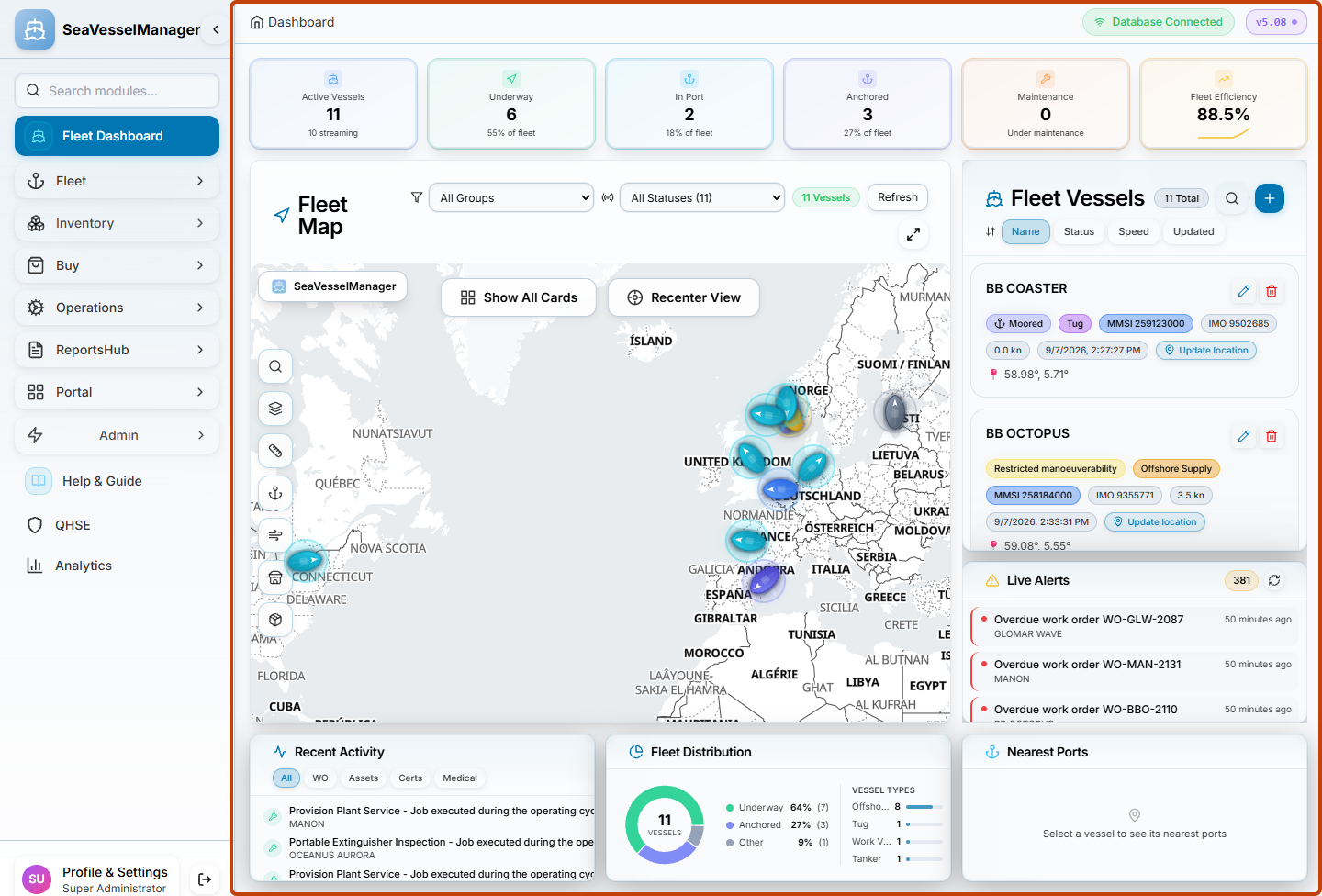
The dashboard shows the fleet status at a glance with counts and filter options. -
Switch to Cards view
Find the Cards and Grid view toggle near the KPI cards.
Select Cards if it is not already active.
The vessel cards show each vessel's name, status, and key indicators.
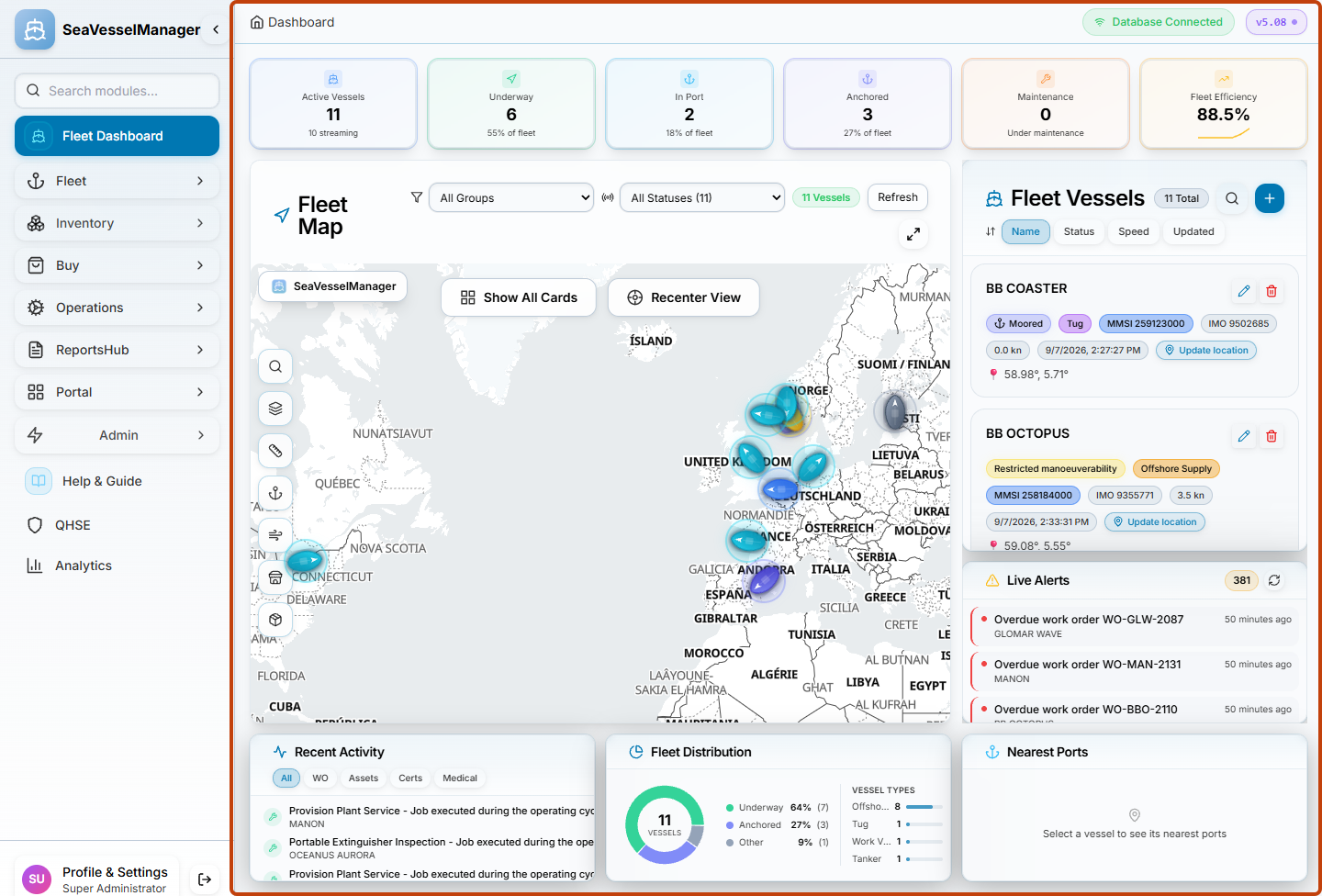
Cards view groups the vessels into selectable cards with status and key indicators.
Result
You can read the fleet status, switch the dashboard view, and understand what each KPI count represents.
FAQs
Why does the dashboard show a different number of active vessels than the total?
Active Vessels counts only vessels currently marked active. Other KPIs show subsets based on operational status, AIS state, or alerts.