Getting Started
How to Sign In to SeaVesselManager
Open your company's SeaVesselManager installation, enter your username and password, and reach the fleet dashboard.
Overview
Signing in gives you access to your company's maritime planned maintenance system. Office personnel and vessel crew use their own accounts so access and recorded work can be associated with the correct person.
Before You Start
- Your company's SeaVesselManager server must be installed and reachable from your device.
- Your administrator must provide your installation address, username, and password. The support website is not your company's application login.
- Connect to the office or vessel network required for your installation.
Step-by-Step Instructions
-
Open your installation
Open the SeaVesselManager address provided by your administrator in your browser.
If you are not already signed in, the Sign in screen appears. For a server installed on this same computer, the usual local address is http://localhost:3000. On another device, use the server address, not localhost.
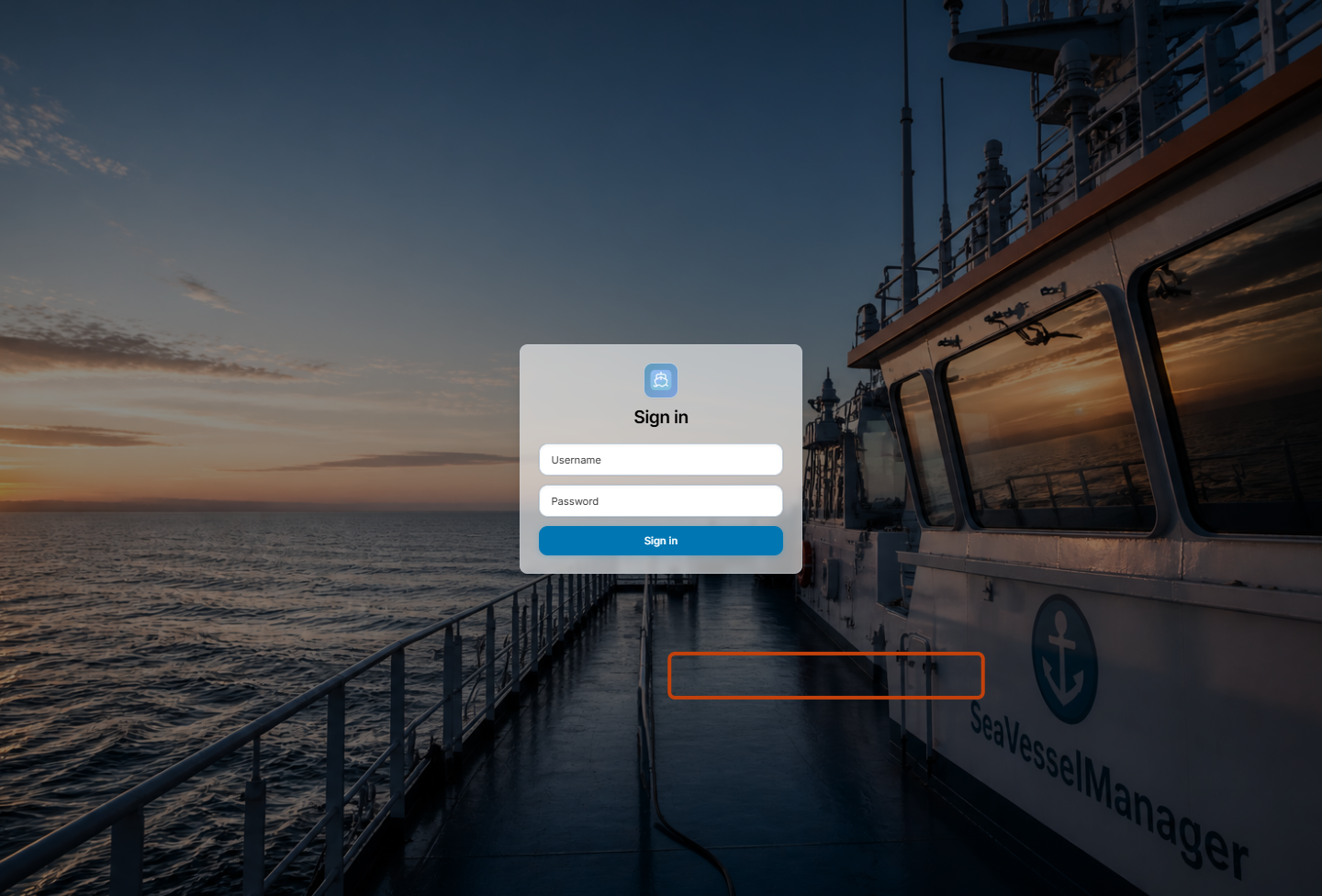
The real Sign in screen. Enter your own account details in Username and Password. -
Enter your account details
Enter your account name in Username.
Enter your password in Password.
Click Sign in. Do not leave either field empty. The message Username and password are required means you need to complete both fields.
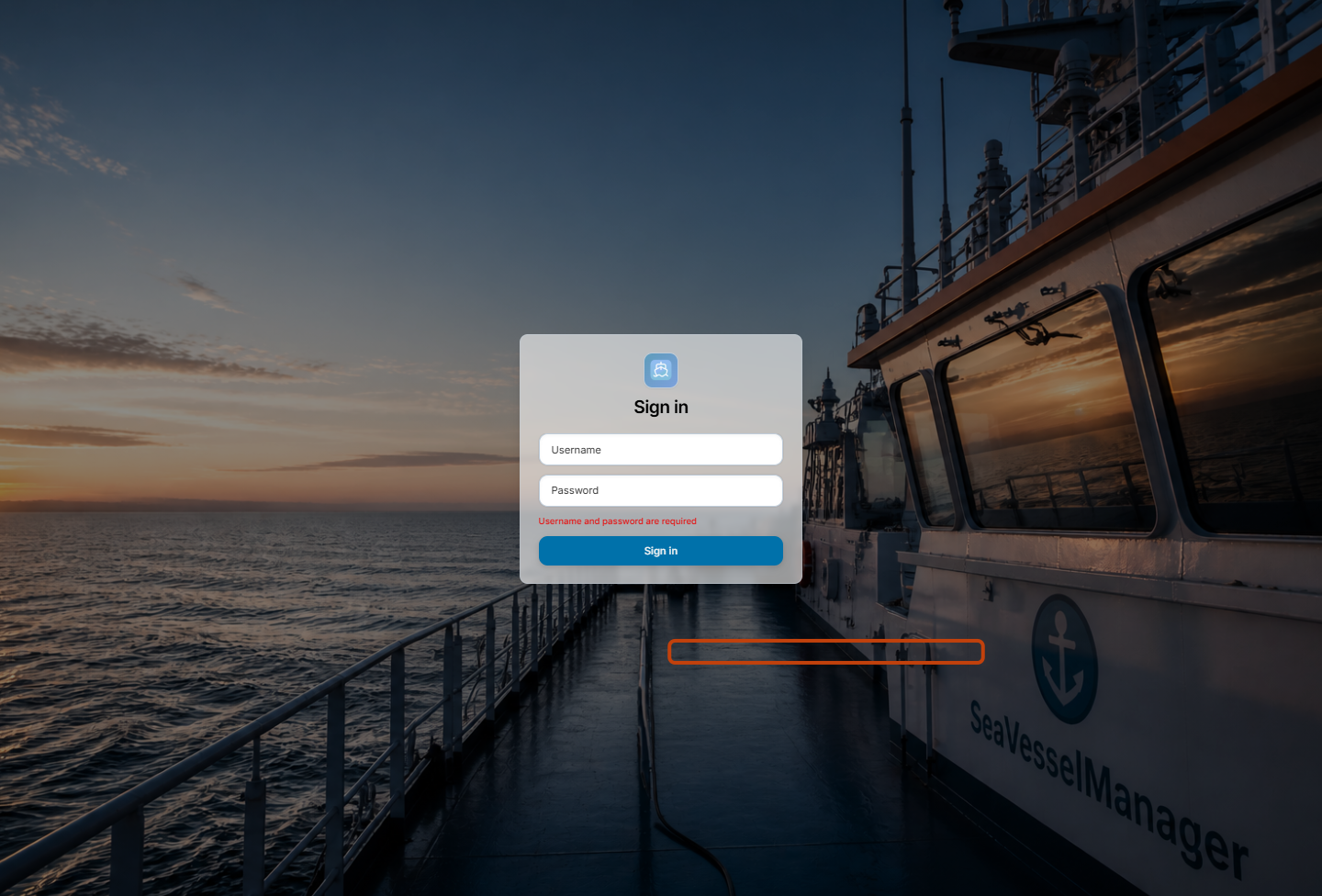
SeaVesselManager checks that both sign-in fields are filled before submitting the login. -
Confirm that you are signed in
After a successful sign-in, the application normally opens the Fleet Dashboard. If you originally followed a link to another permitted page, you may return to that page instead.
Check the account name under Profile & Settings at the bottom of the sidebar. Use your own account rather than sharing an administrator account.
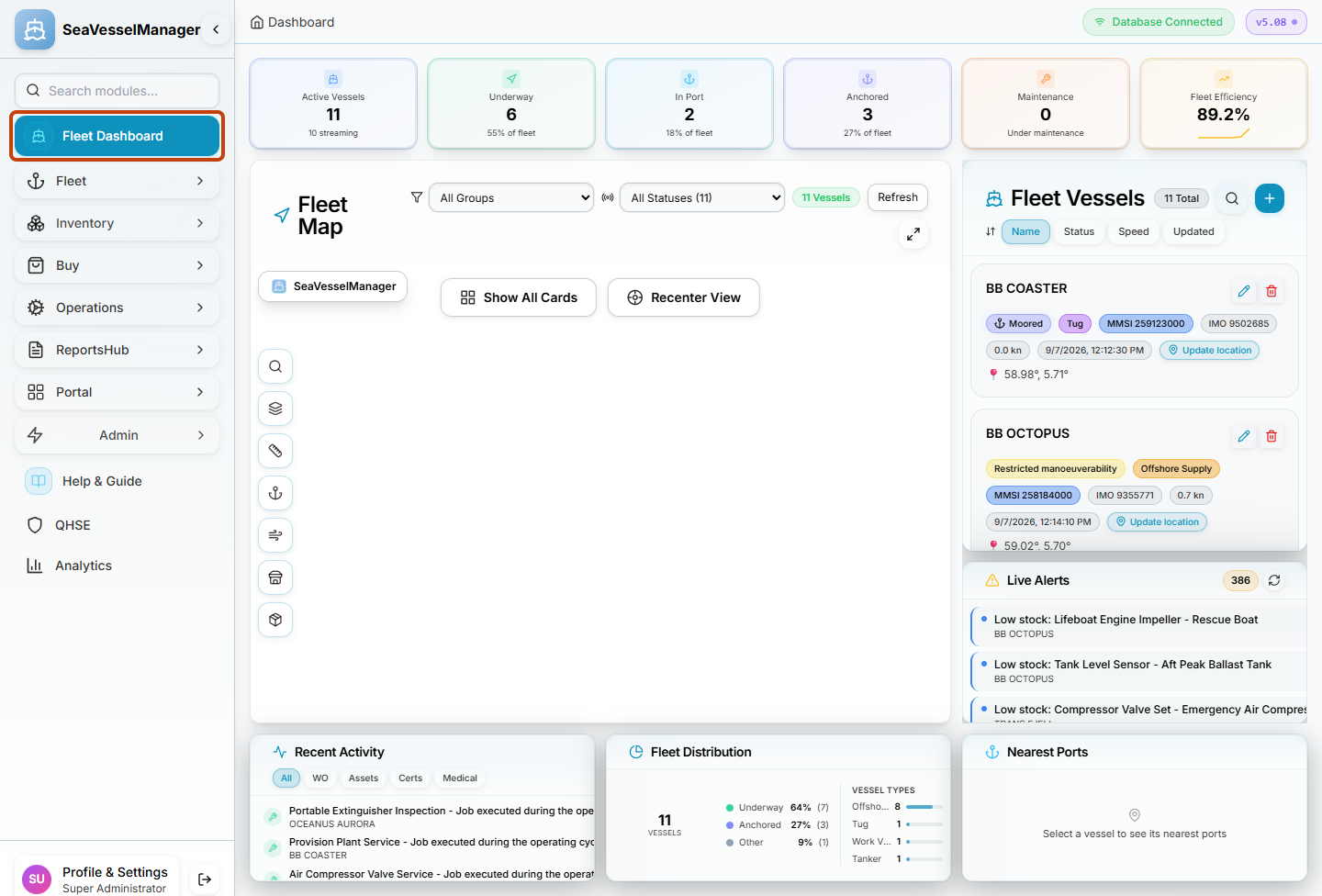
The authenticated Fleet Dashboard in the documentation demo. Your vessels and available menus depend on your access.
Result
You are signed in and can open the modules and vessels permitted for your account.
FAQs
Do I sign in on the support website?
No. Use your company's SeaVesselManager installation address. This support site contains instructions.
Why do I see different menus from these screenshots?
Menu visibility depends on your account permissions. The documentation screenshots were captured with a super administrator in a local demonstration installation.