Reports & Analytics
View stock analytics for one vessel
Switch Stock Overview between all vessels and a selected vessel on Fleet Analytics.
Overview
Stock Overview summarizes stock item records, their value, zero-stock items, low-stock alerts, and reorder requirements. Use its vessel selector to inspect one vessel without changing work-order data.
Before You Start
- Sign in with access to the Analytics page.
- The vessel you want to inspect must be available in the Stock Overview selector.
Step-by-Step Instructions
-
Find Stock Overview
Open Fleet Analytics at /analytics and scroll down to Stock Overview, below Vessel Maintenance Status.
Start with All Vessels selected to see the fleet-wide stock summary.
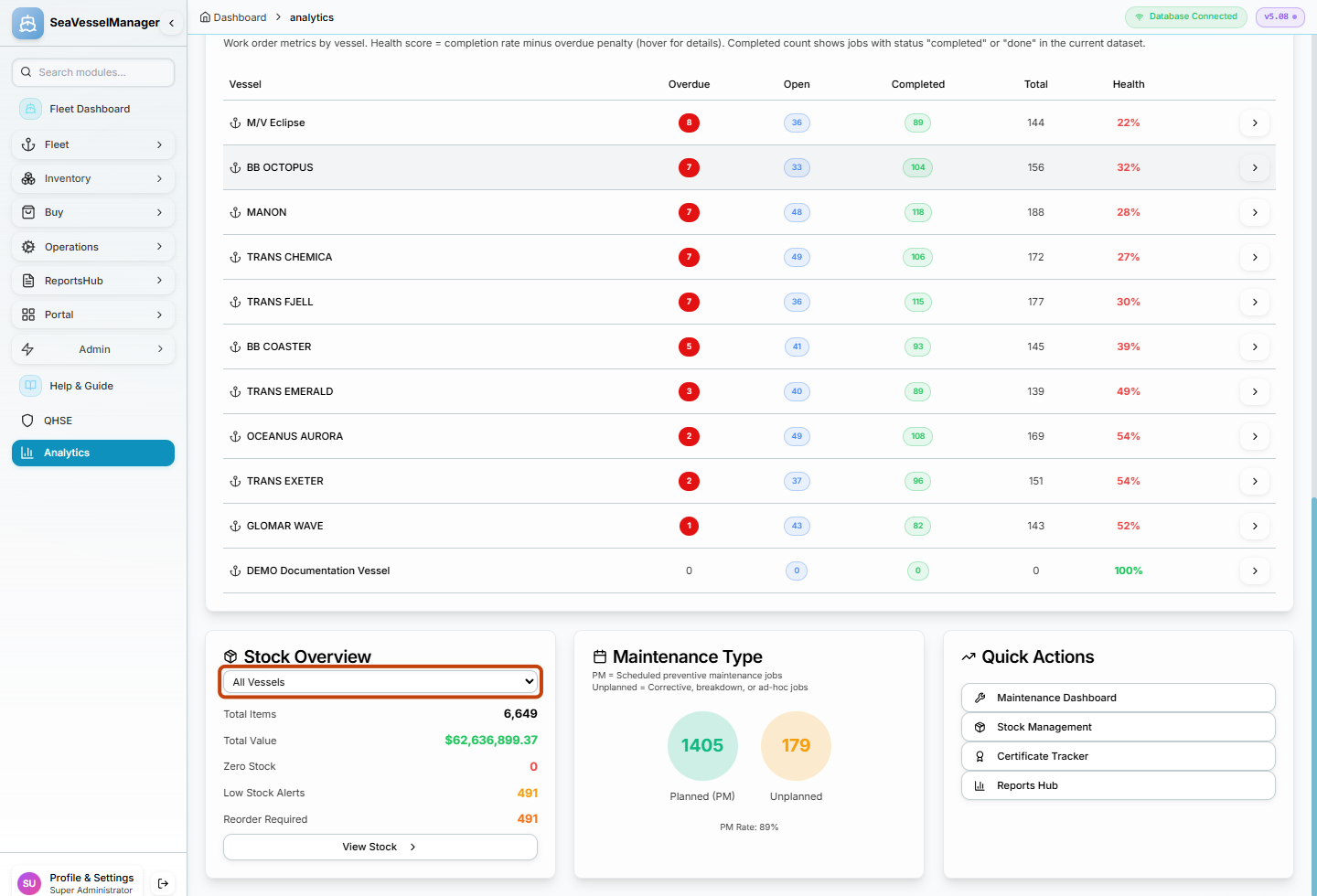
The vessel selector belongs to Stock Overview, not to the whole Analytics page. -
Choose a vessel and review its summary
Choose your vessel in the Stock Overview selector. The example uses BB COASTER.
Wait for the figures to update, then review Total Items, Total Value, Zero Stock, Low Stock Alerts, and Reorder Required.
Choose All Vessels again when you want to return to the fleet-wide stock summary.
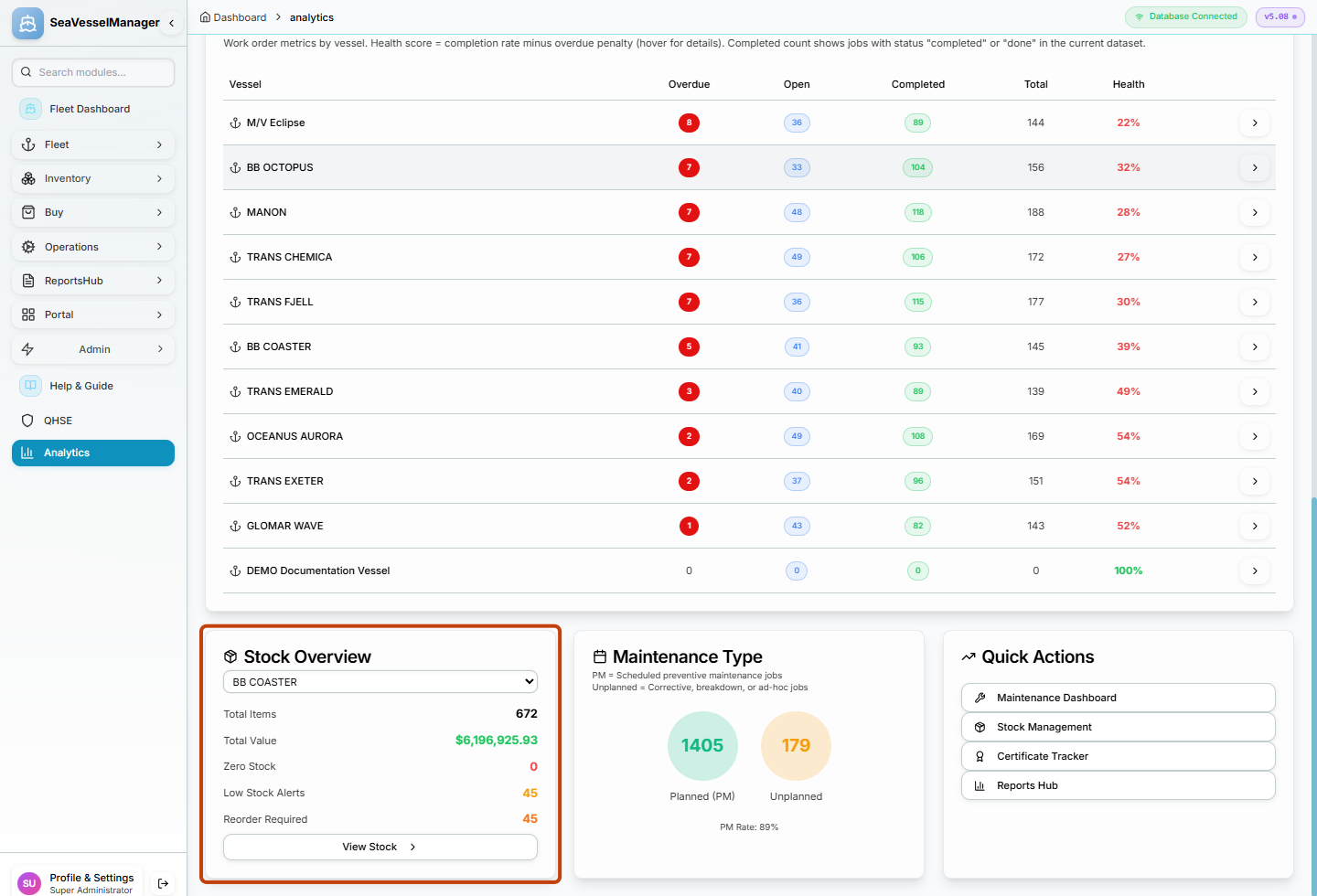
The selected vessel's stock summary replaces the fleet-wide figures.
Result
Stock Overview displays the summary for the selected vessel, and selecting All Vessels restores the broader stock view.
FAQs
Where do I set a custom date range?
This Analytics page does not offer a custom date-range control. This workflow changes the stock vessel selection only.
Does Total Items mean the number of individual spare units?
It counts stock item records in the loaded summary, not the sum of all stock quantities.