Notifications
Find open critical alerts for a vessel
Combine vessel, severity, status, and text filters on Alerts & Overdue Work Orders.
Overview
Narrow the alerts table to items that need review for one vessel. You can search alert titles and messages without acknowledging or closing an alert.
Before You Start
- Sign in with permission to view Alerts.
- The vessel must be available in the vessel selector. Matching alerts are needed to reproduce the populated example.
Step-by-Step Instructions
-
Set the vessel, severity, and status
Open Alerts & Overdue Work Orders at /alerts.
In Filters, select your vessel; the example uses BB COASTER.
Choose Critical in the severity selector and Open in the status selector. Wait for the table to update.
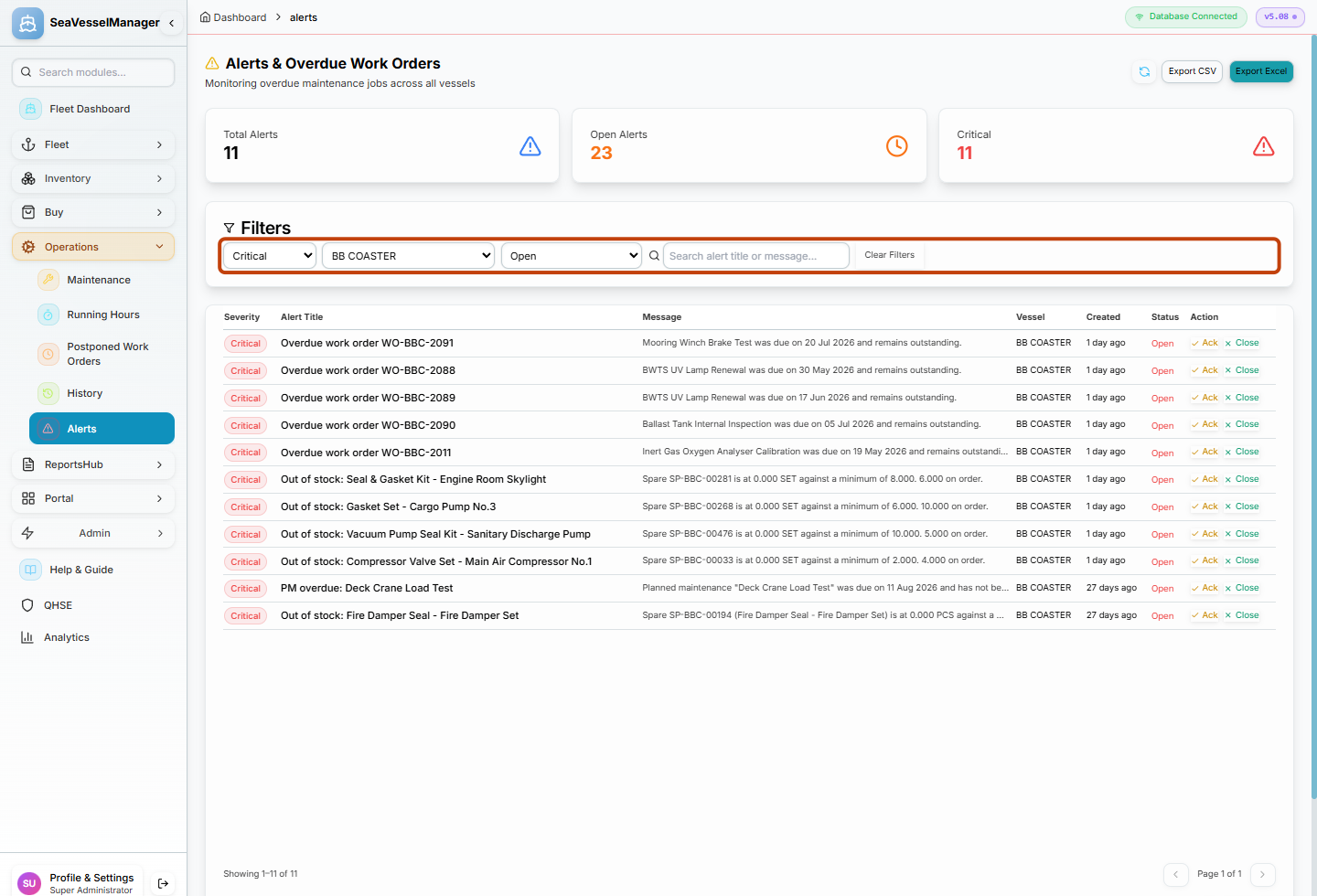
Combine the three selectors to focus the table on one vessel's open critical alerts. -
Search within the filtered alerts
Enter Overdue work order in Search alert title or message.
Wait briefly for the search to update. Read the matching rows' Alert Title, Message, Vessel, and Status columns.
Click Clear Filters when finished to remove the text, severity, vessel, and status selections.
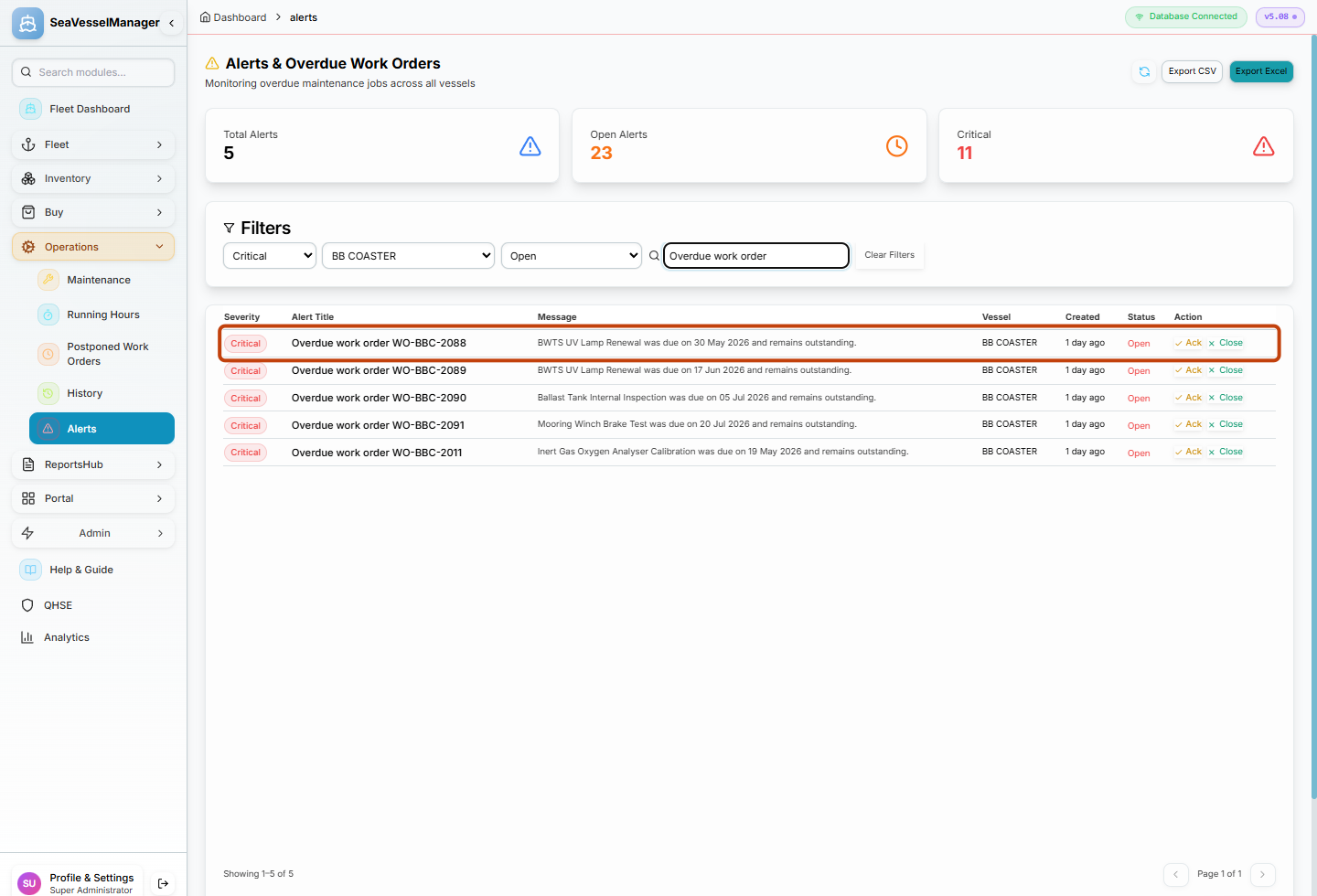
The search further narrows the already filtered table.
Result
The table shows alerts matching the vessel, severity, status, and search text. You have reviewed the list without using Ack or Close.
FAQs
What happens when I clear the status filter?
The default becomes Open & Acknowledged. Closed alerts require selecting Closed explicitly.
Why does the table not update on every keystroke?
The search waits briefly after you stop typing before requesting results.
What if no rows match?
Check the selected vessel and broaden the severity, status, or text search. Use Clear Filters to return to the default view.