Notifications
Filter notifications by read status
Switch between unread, read, and all notifications without changing their status.
Overview
Use the Notification Center's status selector to narrow your notification feed. Changing this selector is a viewing action: it does not mark notifications as read or delete them.
Before You Start
- Sign in with permission to view Notifications.
- Your feed may be empty. You can still choose a status and refresh it.
Step-by-Step Instructions
-
Show unread notifications
Open Notification Center at /notifications.
In the selector beneath the summary cards, choose Unread.
Check the Showing count and the list below it. No notifications means there are no entries to display for the selected view.
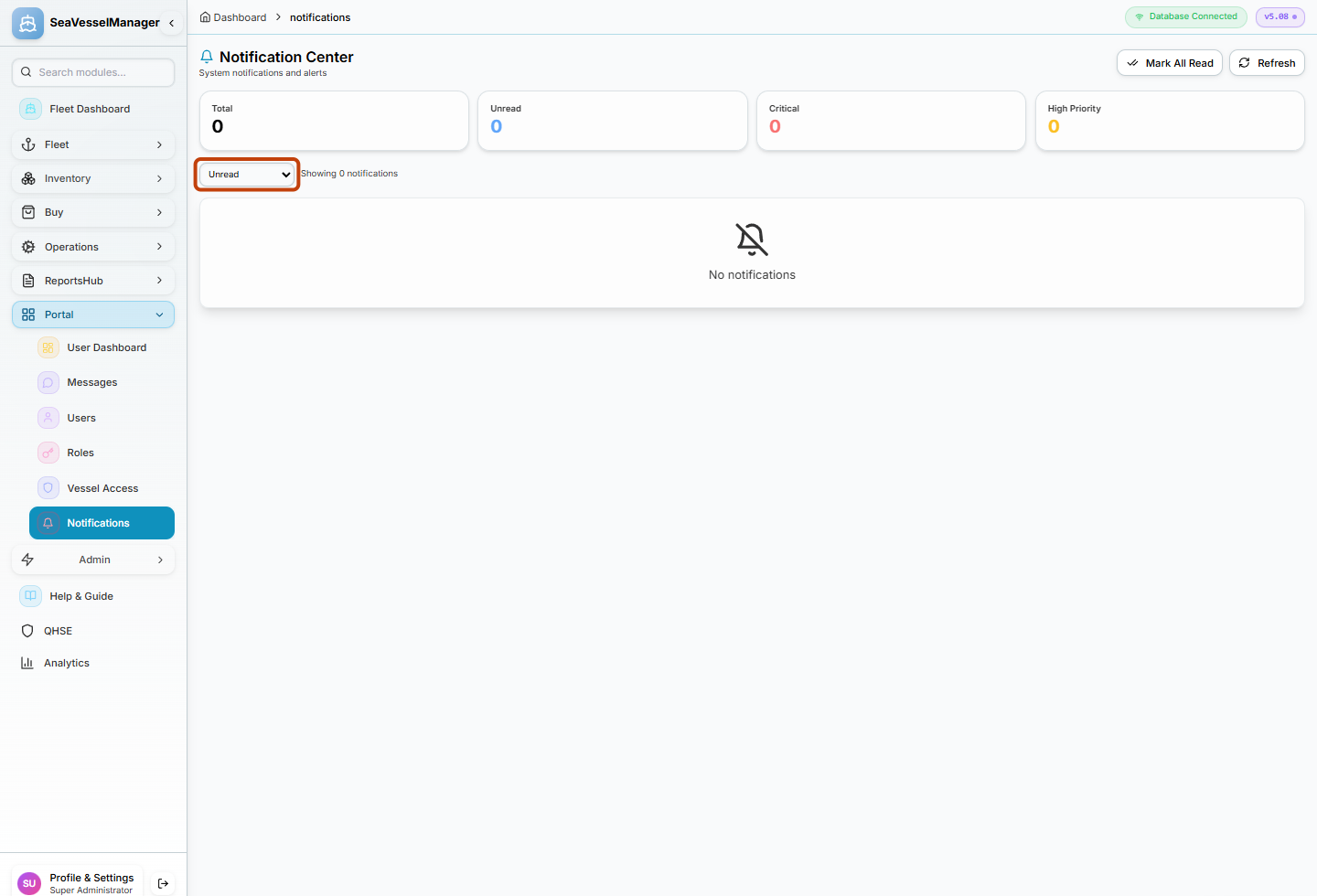
Unread is a viewing filter. The example feed contains no notifications. -
Review read notifications and return to the full feed
Choose Read in the same selector to review the read-notification view.
To remove the status filter, choose All Notifications.
Click Refresh to request the latest entries for the current view.
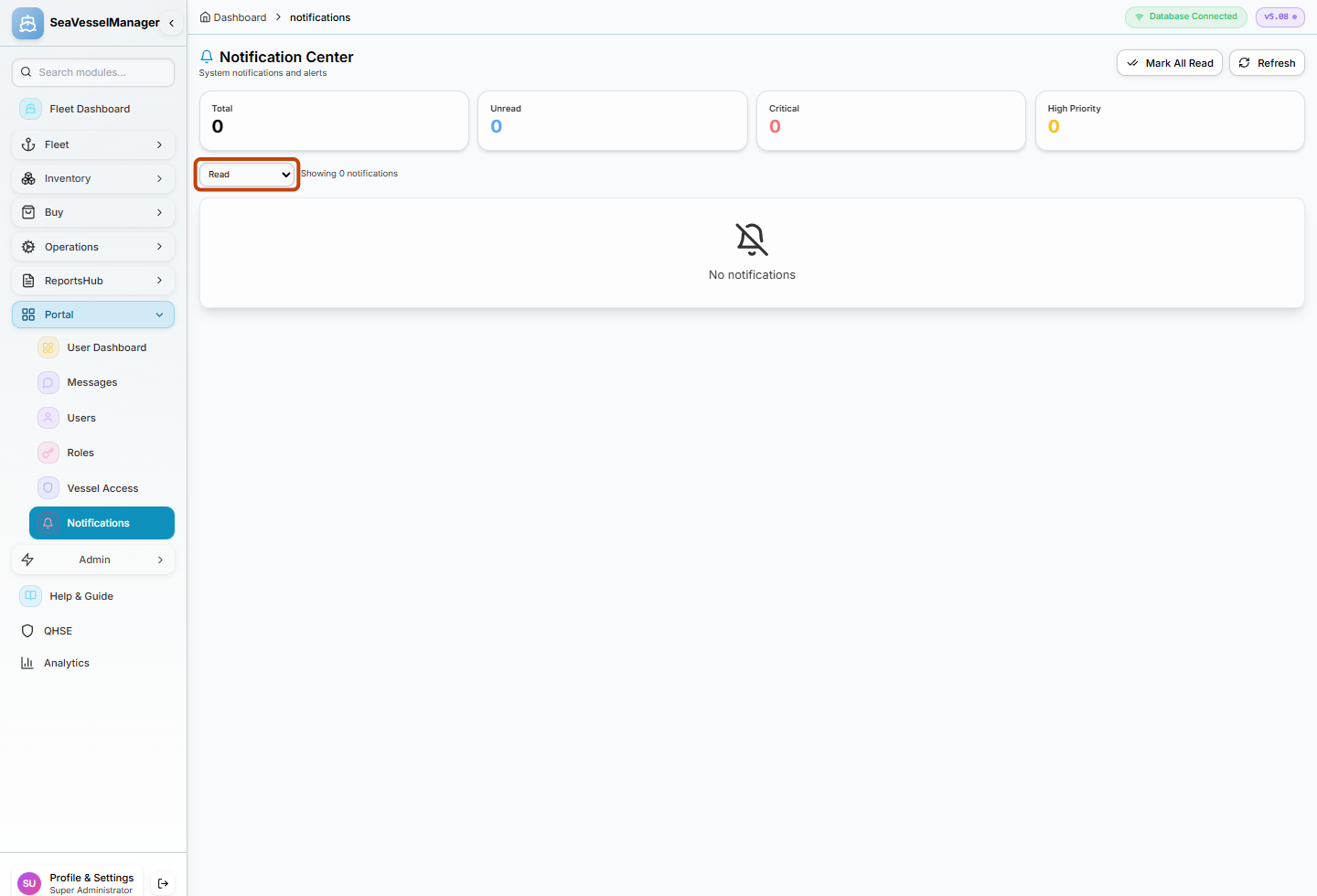
Switch to Read, or select All Notifications to remove the status filter.
Result
The Notification Center displays the selected read-status view. No notifications were marked or deleted in this workflow.
FAQs
Does choosing Read mark my unread notifications as read?
No. It only requests the read-notification view. Mark All Read is a separate action.
What should I check if the list is empty?
Choose All Notifications and click Refresh. An empty result can be normal when your account has no notifications.