Advanced Features
Find planned trips and review completed trips
Use Trip Planner's active-status selector and completed-trip tab without editing trips.
Overview
Trip Planner separates active trips from completed trips. Filter the Active tab by status, then reset that filter before switching to Completed so that a hidden active-status selection does not hide completed records.
Before You Start
- Sign in with access to Trip Planner.
- Trips must be available to your account to reproduce the populated example.
Step-by-Step Instructions
-
Show planned active trips
Open Trip Planner at /trips. The Active tab is selected on initial load.
Choose Planned in the selector at the top right of the table.
Review the planned trips' vessel, departure, destination, and status columns.
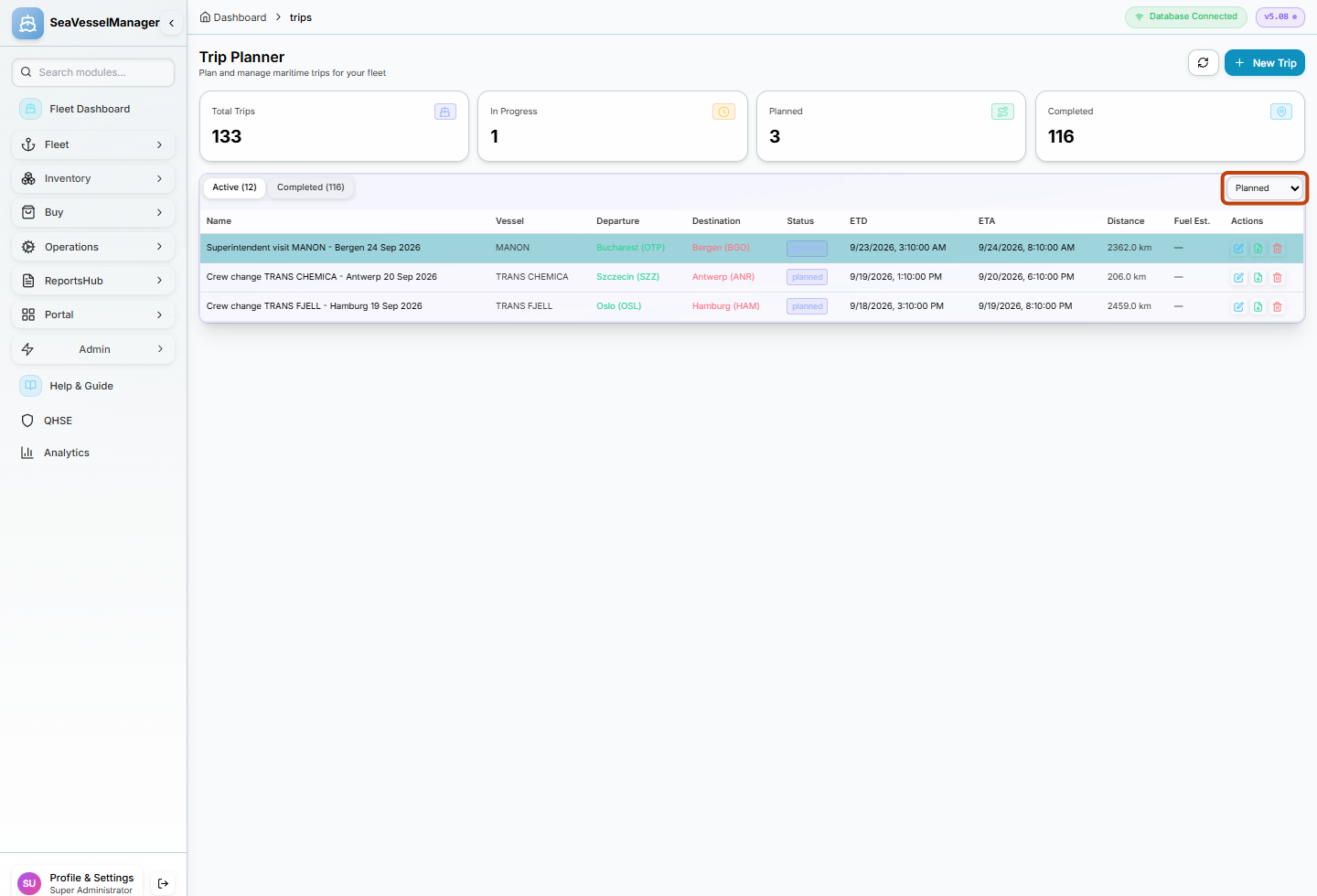
The status selector narrows the Active tab to planned trips. -
Reset the active filter and review completed trips
Before leaving Active, change Planned back to All Active.
Click Completed above the table. Review the completed trip rows.
Click Active to return to the active-trip list.
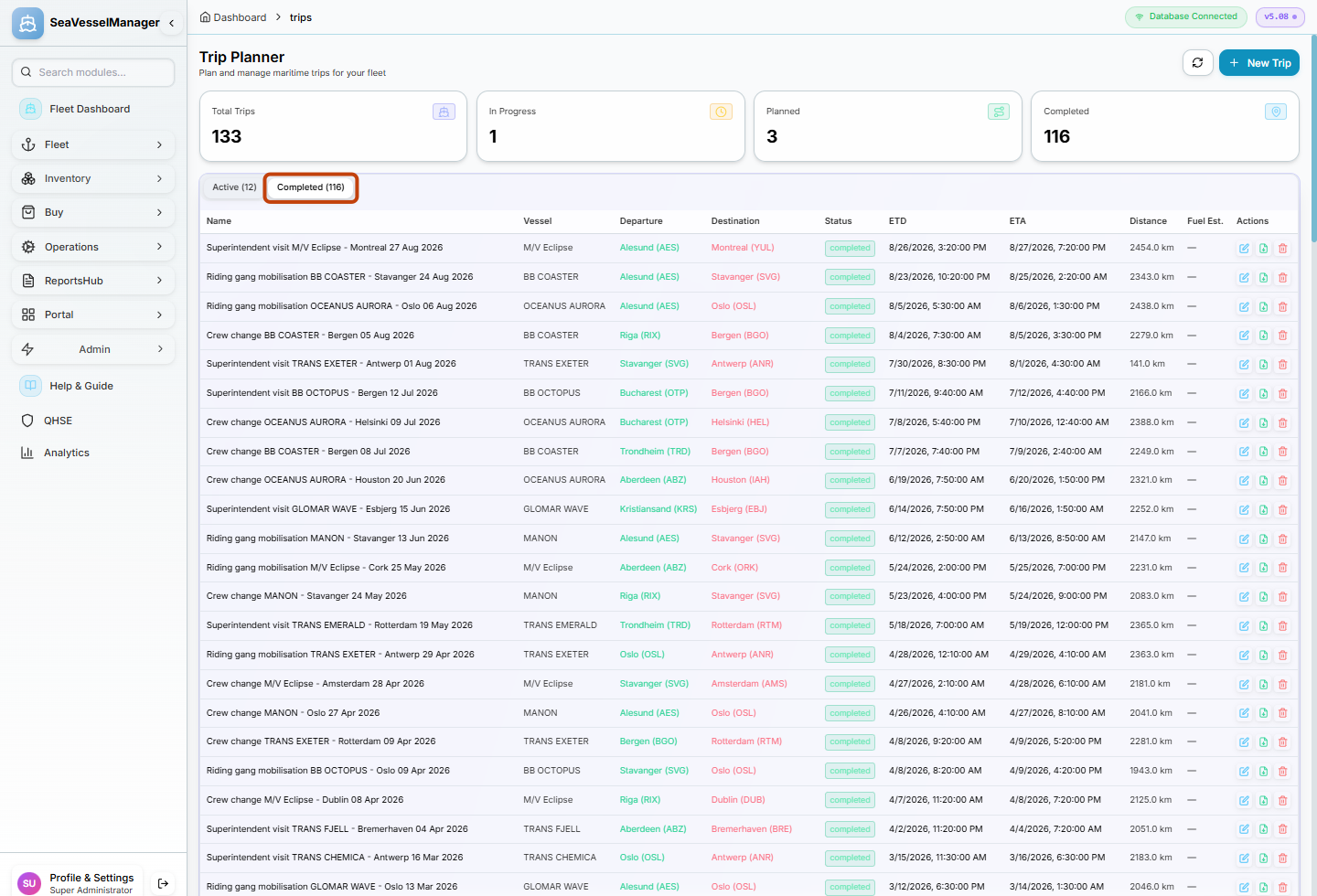
Reset All Active before switching to Completed to avoid carrying an active-status filter into this tab.
Result
You can inspect planned active trips and then completed trips without editing, deleting, or creating a trip.
FAQs
Why do the Active and Completed counts not add up to Total Trips?
Cancelled trips are excluded from both tabs but can still be included in Total Trips.
Why is Completed empty after I filtered Active?
Return to Active, choose All Active, and then reopen Completed. The active-status filter can otherwise hide completed rows.