Advanced Features
Review mobile Vessel and Crew certificates
Switch certificate summary tabs and select a vessel for vessel certificates.
Overview
The mobile Certificates page presents summary rows with expiry badges. This walkthrough verifies the Vessel selector and the Crew tab; it does not open documents or renew certificates.
Before You Start
- Sign in with Certificates viewing access and open mobile Home.
- Existing vessel and crew certificate records must be available. Two accessible vessels are needed to repeat the vessel-switching example.
Step-by-Step Instructions
-
Review vessel certificate summaries
Choose Certificates from Home.
Keep Vessel selected and choose a vessel from the selector. The example starts with BB COASTER.
Read the certificate titles, numbers and expiry badges.
Choose a second vessel to replace the vessel-specific certificate rows. The verification switched to BB OCTOPUS.
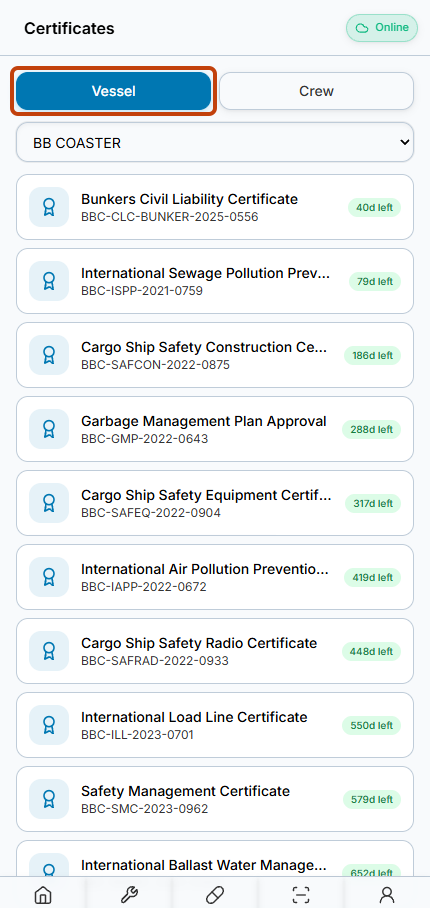
The Vessel tab shows certificate numbers and expiry badges for the selected vessel. -
Switch to Crew and back
Choose Crew to view the crew certificate summary rows.
Notice that the vessel selector is not displayed on Crew.
Choose Vessel again to return to vessel certificates. The previous vessel selection is retained.
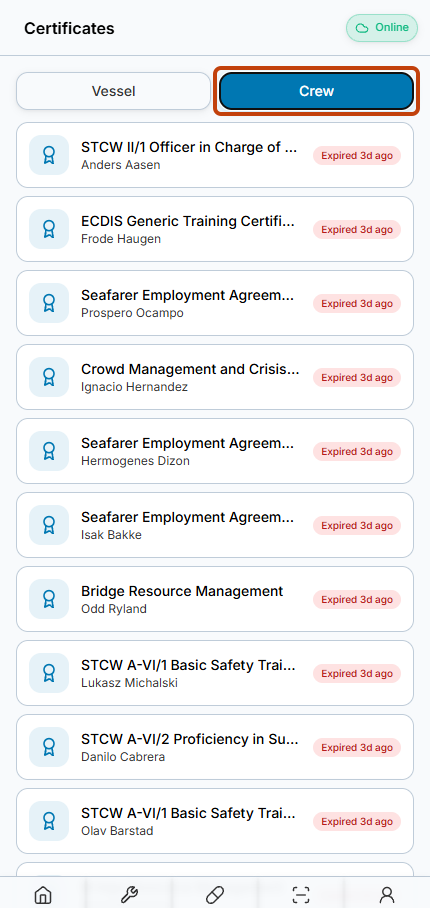
The Crew tab shows crew certificate summaries without the vessel selector.
Result
You can review vessel-specific certificate summaries and switch to the separate Crew certificate list.
FAQs
Does selecting a vessel also filter Crew?
No. The Crew tab uses a separate list query without the selected-vessel filter and hides the vessel selector.