Equipment & Assets
Review completed jobs for a component
Open a component's Job History and inspect a completed job record.
Overview
Engineers and maintenance planners can consult a component's completed jobs before planning new work. Job History shows what was done and lets you open the associated historical job details.
Before You Start
- Sign in with modules.assets.view or modules.inventory.view and access to the vessel.
- The component needs existing completed jobs. The verified example is Main Engine No.1 on BB COASTER, which has three historical jobs.
Step-by-Step Instructions
-
1. Open the component's Job History
Go to Inventory > Assets, select BB COASTER and search for Main Engine No.1.
Double-click the Main Engine No.1 row to open its component card.
Select Job History in the card. Review Job No, Date Done, Job Name, Status and the other displayed columns.
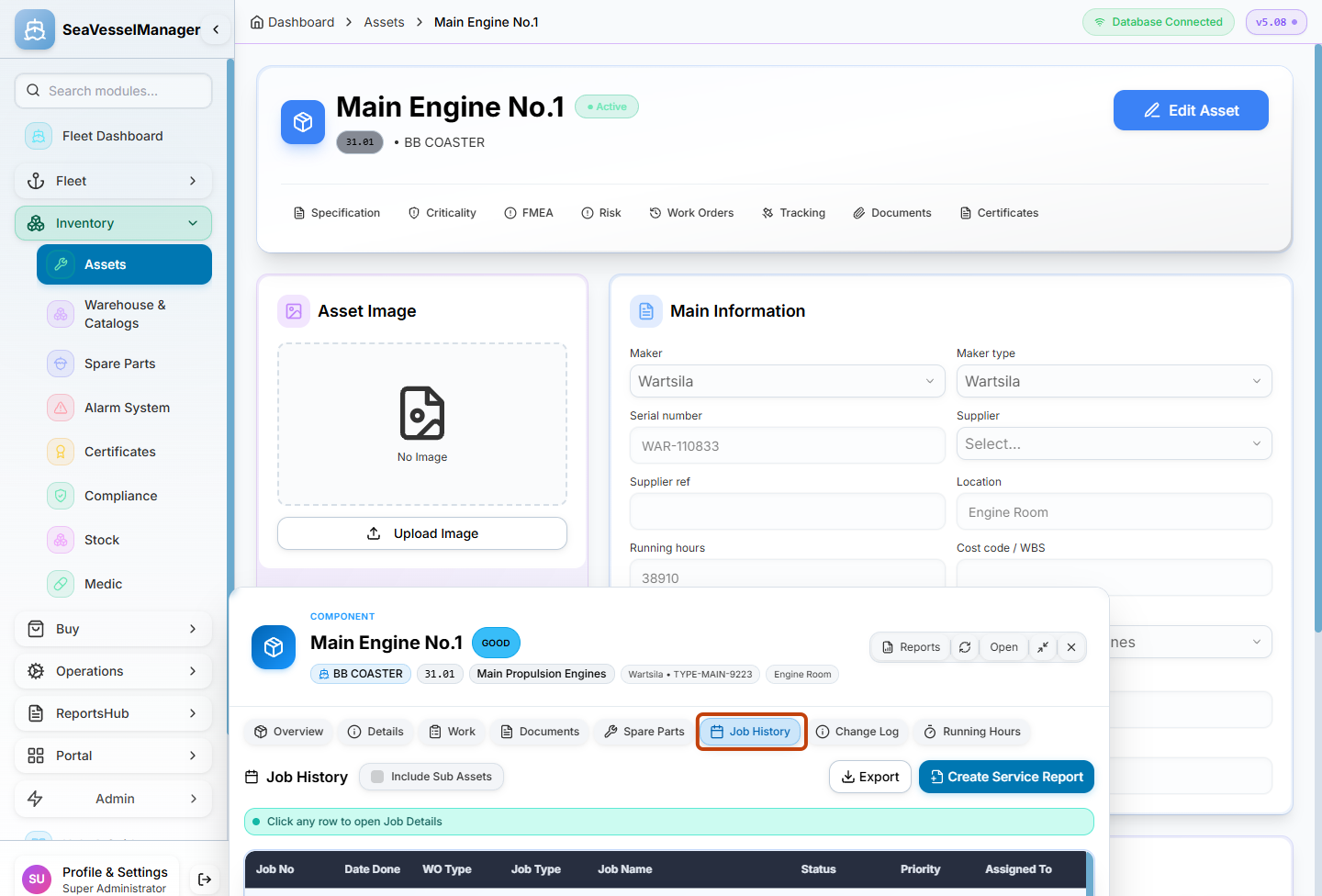
Job History lists completed work associated with the component. -
2. Inspect an existing completed job
Click the historical job you want to inspect. The example uses WO-BBC-2018, Main Engine Crankcase Inspection.
Review the opened job details and its recorded completion information. Do not start a new job or change the historical record.
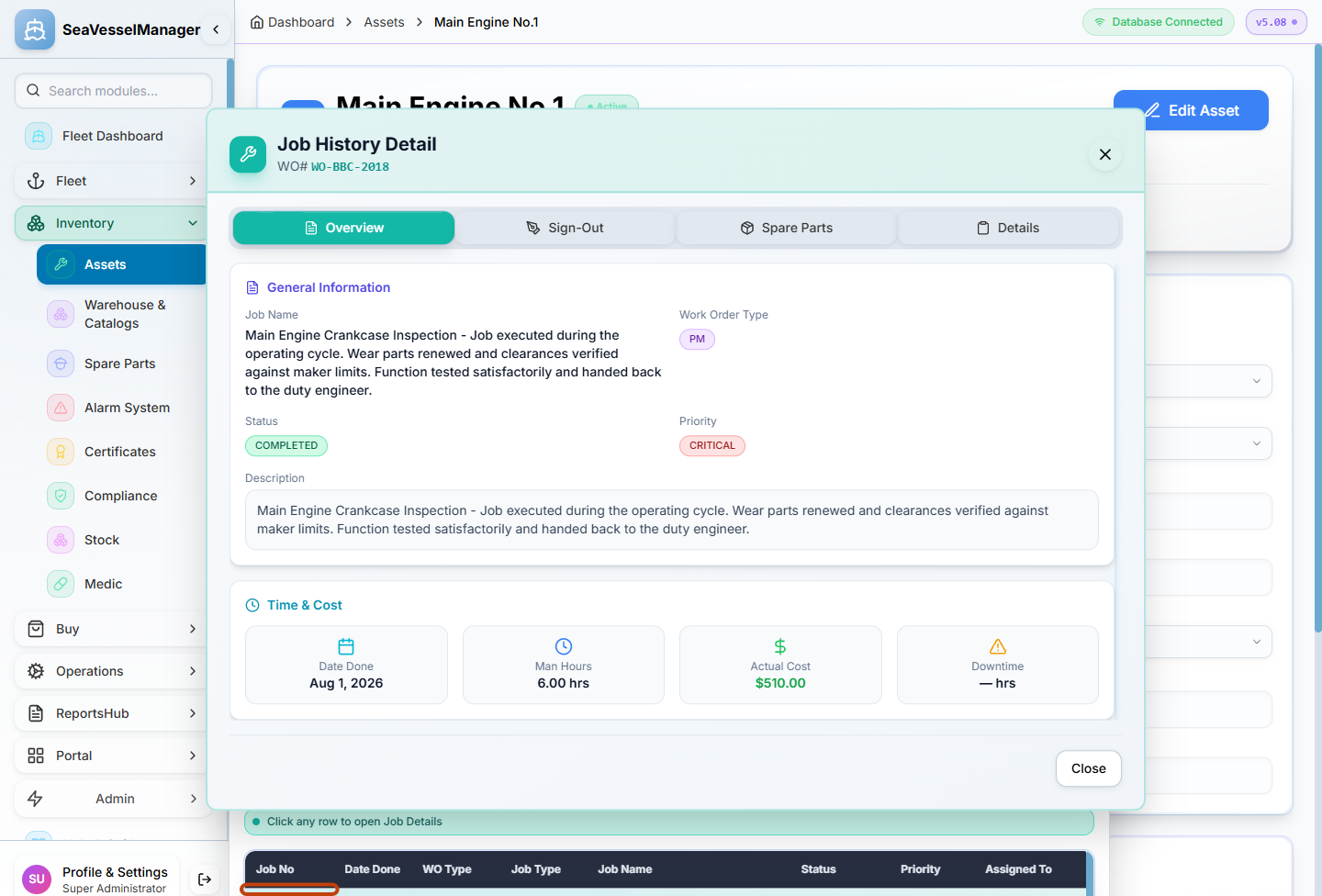
Open an existing history row to read the completed job's information.
Result
A completed job associated with the selected component is open for review, without changing maintenance data.
FAQs
Where is Job History?
Double-click a component in the Assets register to open its floating card, then choose Job History. The full asset page has a different set of navigation links.