Equipment & Assets
Browse a vessel's equipment by SFI hierarchy
Select a vessel and expand its SFI groups to locate equipment.
Overview
Engineers and technical staff can browse the Assets register by Ship Functional Identification (SFI) when they know the system an item belongs to but not its exact name. Grouped rows show the relationship between systems and components.
Before You Start
- Sign in with either assets-view or inventory-view permission (modules.assets.view or modules.inventory.view).
- You need access to the vessel and an existing equipment register. This example uses BB COASTER.
Step-by-Step Instructions
-
1. Select the vessel and grouped register
Expand Inventory in the left menu and select Assets.
Choose BB COASTER under Select Vessel.
Clear Search Components. If the toolbar shows Grouped, click it to return to grouped rows. A toolbar button labelled Flat means the grouped view is already active.
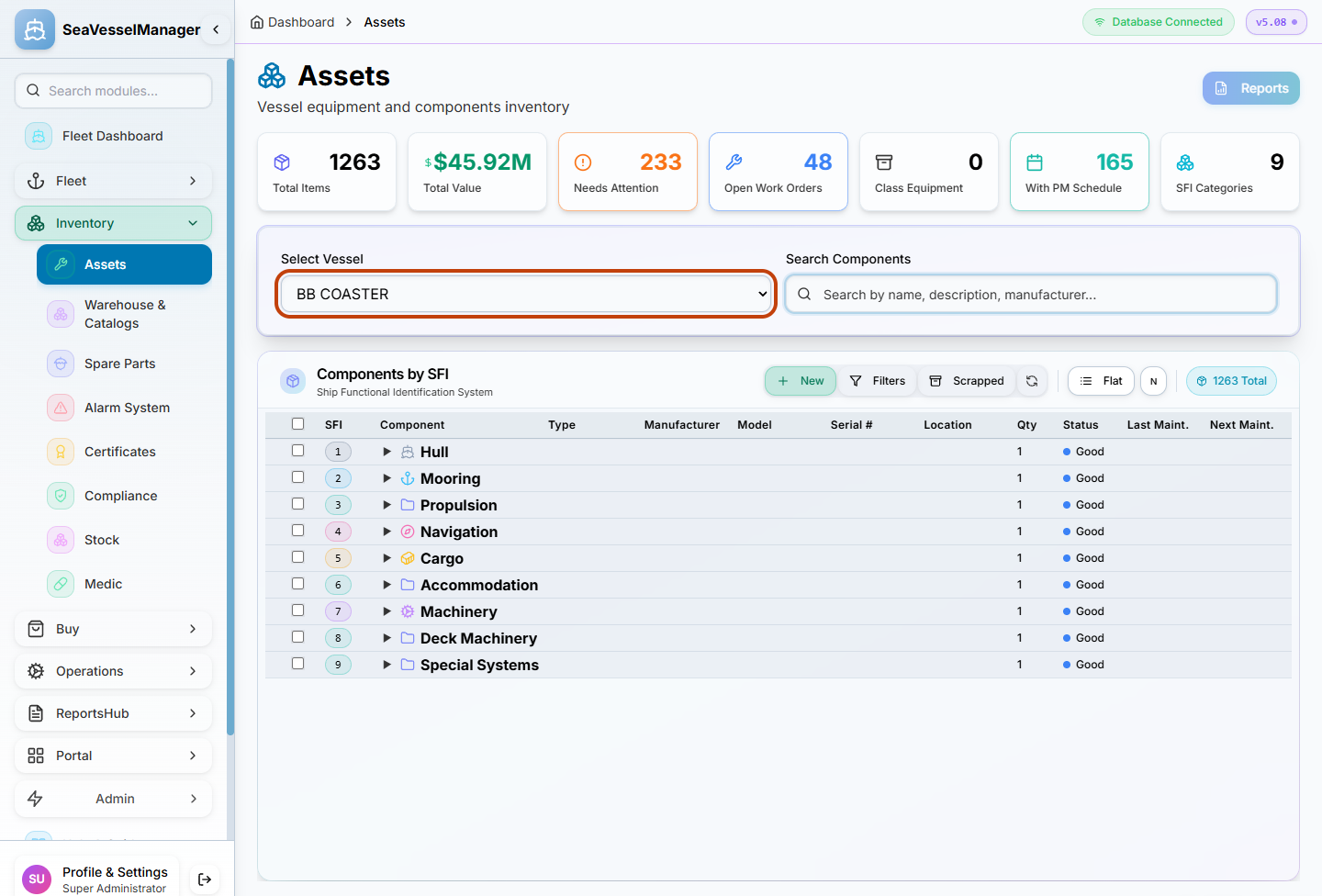
Check Select Vessel before browsing the equipment hierarchy. -
2. Expand the system and component group
Click the Propulsion row to expand SFI group 3.
Click Main Propulsion Engines to expand group 31.
Read the revealed equipment rows, including Main Engine No.1 at SFI 31.01. The row also shows manufacturer, model, location and condition.
A row's arrow indicates whether its child rows are expanded; use a single click on a group to expand or collapse it.
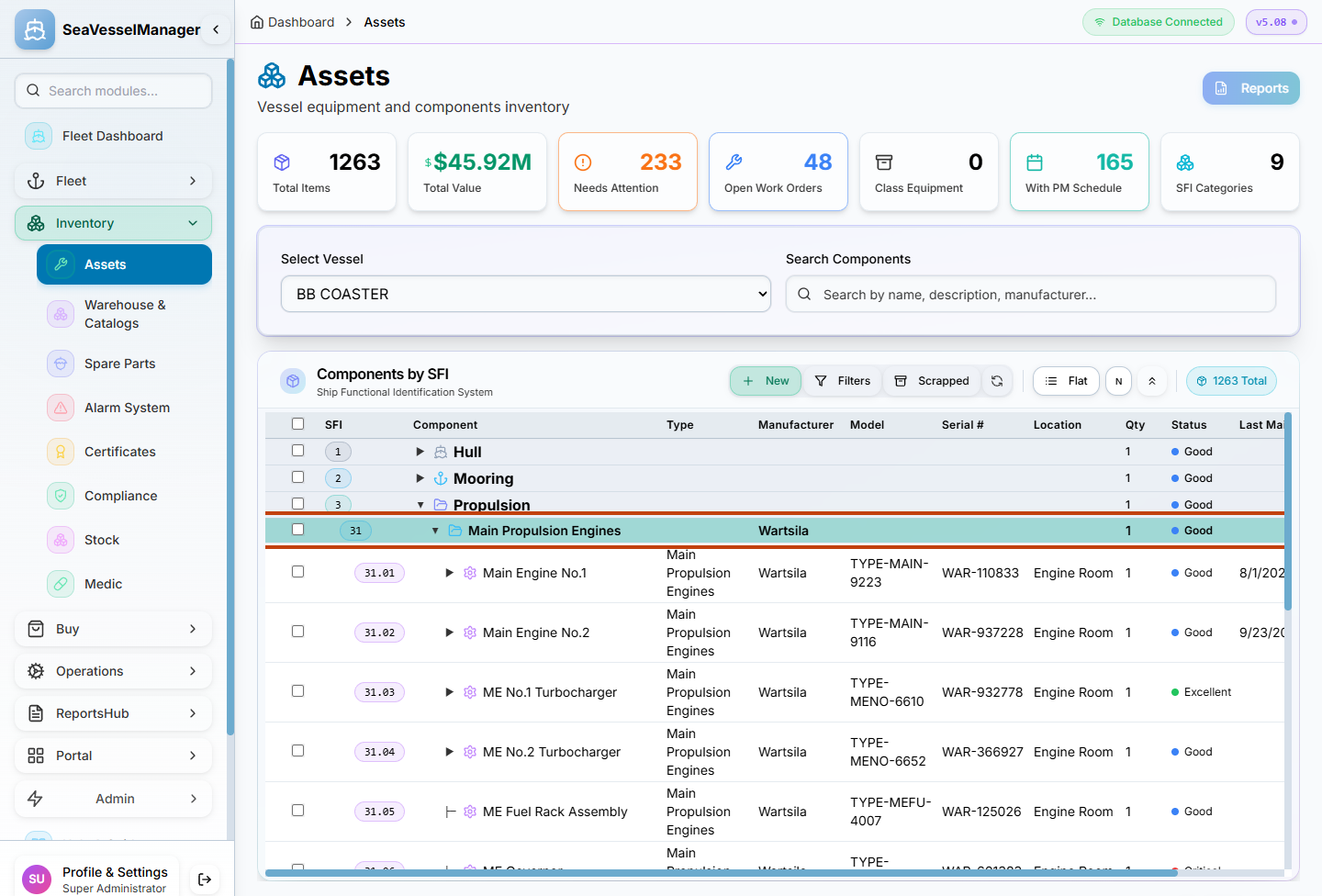
Expand one level at a time to see equipment within a system.
Result
The intended vessel's equipment is visible under its SFI system and group, without changing the hierarchy.
FAQs
Why can I see only the top-level systems?
Their child rows are collapsed. Click the system row, then expand the next group to reveal its equipment.