Administration
Review a vessel group's members and access levels
Expand an existing fleet group to read its vessels, assigned members and access labels without changing membership.
Overview
The Vessel Access navigation item opens Fleet Groups. Each card identifies the vessels in a group and can expand to show its existing members. Manage Users also serves as the read-only expansion control; it does not add a member by itself.
Before You Start
- Sign in as admin or superadmin with permission to read vessel-access data. This workflow was verified as superadmin; the page is not open to every role.
- Have an existing fleet group with members. The example uses Coastal & Towage.
Step-by-Step Instructions
-
Open Vessel Access and choose a group
Expand Portal and select Vessel Access, or open /portal/vessel-access. The page heading is Fleet Groups.
Find the relevant group card and read its vessel badges and user count. Coastal & Towage contains BB COASTER and TRANS EXETER in the demo.
Select Manage Users on that card. Do not select the pencil, trash icon or Create Fleet Group.
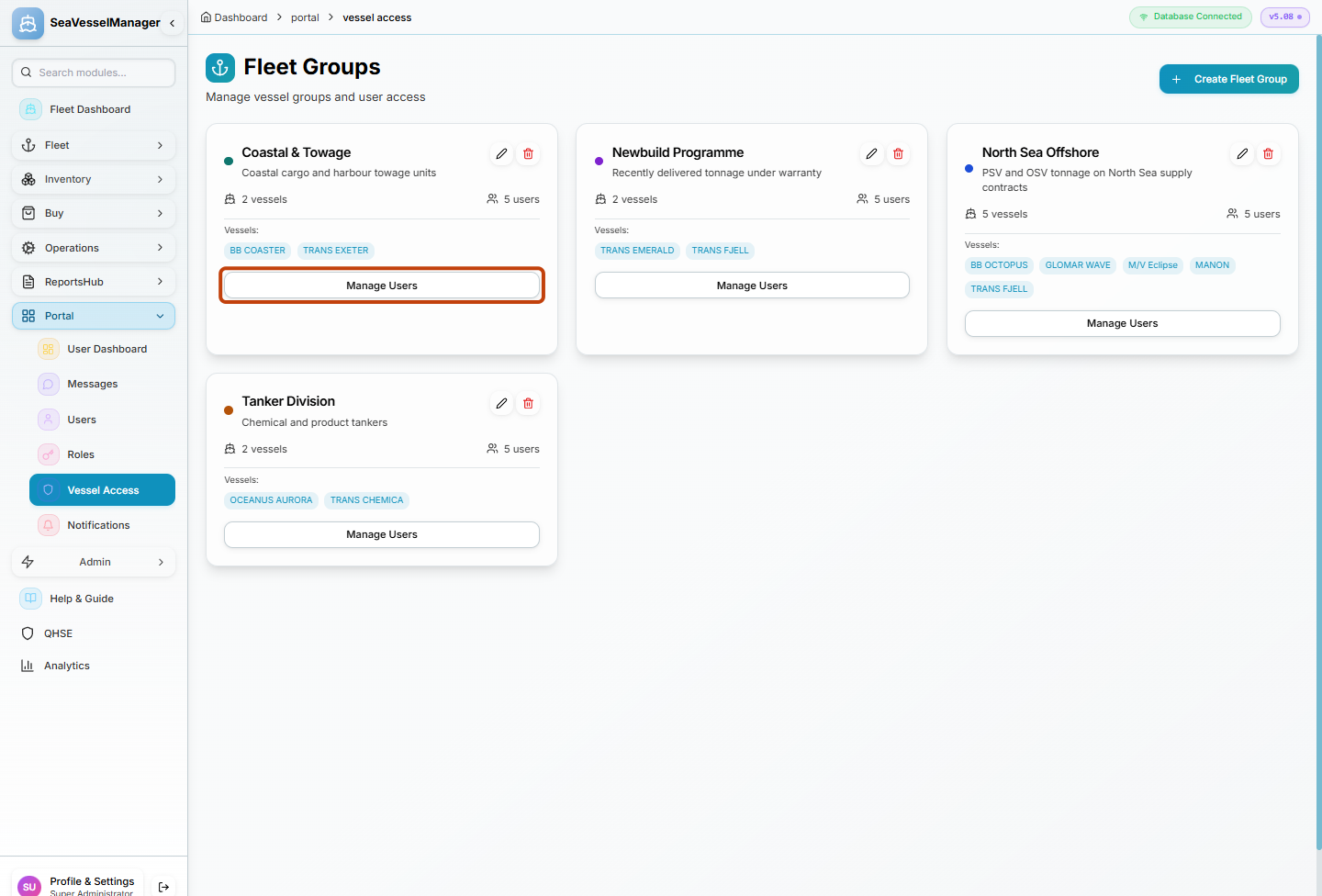
Manage Users expands the membership list for the selected group. -
Read Members, then collapse the list
Under Members, read each person's name and the access label underneath it.
The example shows five members: two with manage and three with view. These are the group's displayed access assignments, not a complete list of the users' application permissions.
Select Hide Users when finished. Leave Add User and every member trash icon untouched.
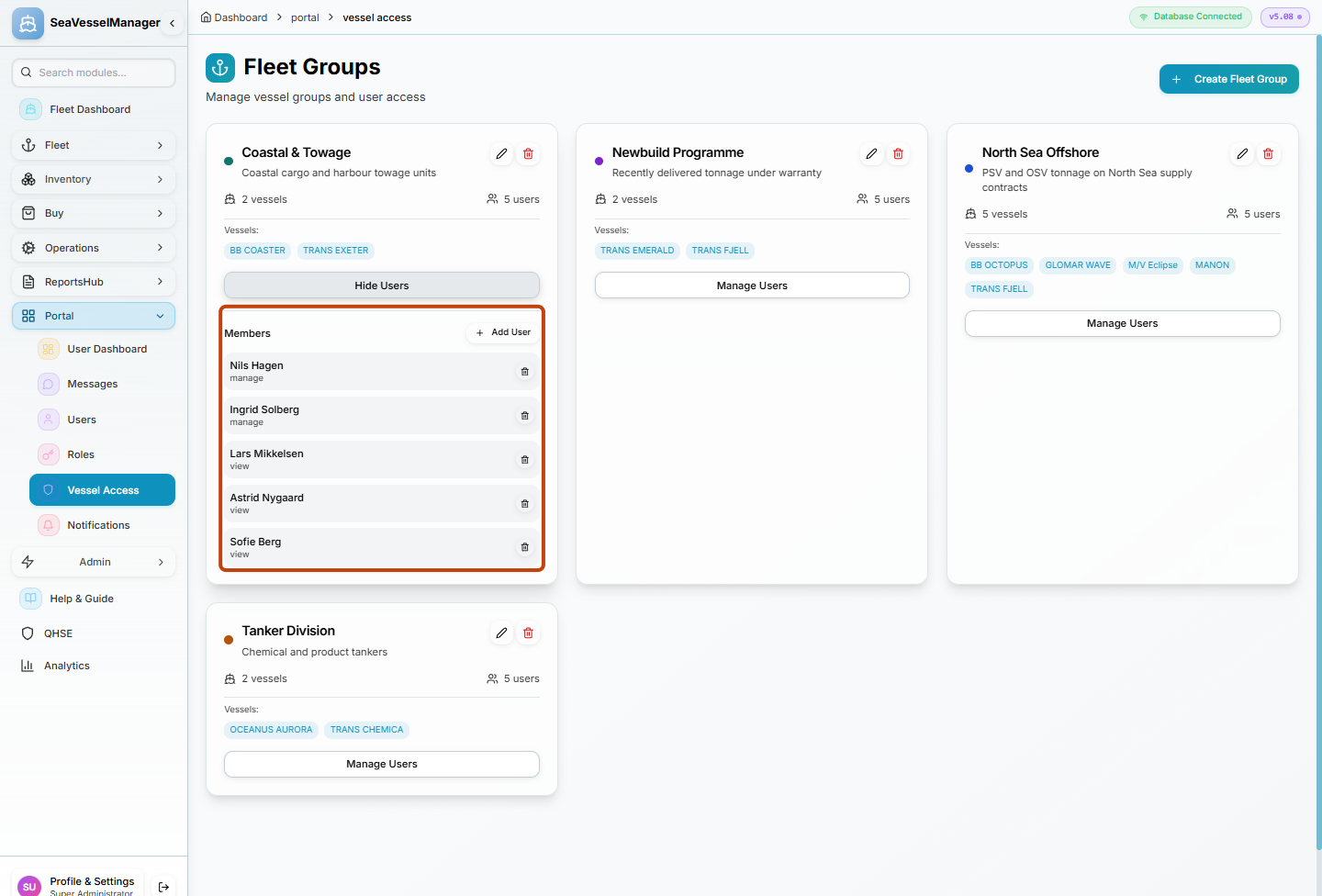
The highlighted list shows current members and their group access levels.
Result
You have read the selected group's vessel coverage and member access labels, then collapsed the list without changing membership.
FAQs
Why does Vessel Access show a Fleet Groups heading?
Vessel Access is the navigation label. The page organizes its displayed vessel and member assignments into Fleet Groups cards.