Administration
Read a user's assigned roles in the Users list
Review an existing account's identity, role badges and joined date without opening its editor.
Overview
The Users list provides a quick account and role check. This guide stops at the existing list: it does not create users, open Manage, change roles or reset passwords.
Before You Start
- Sign in with access to Users (modules.users.view). The illustrated session uses superadmin; this does not imply every role sees these controls.
- Know the name of the existing account you need to review.
Step-by-Step Instructions
-
Open the Users list
Expand Portal in the left sidebar and select Users, or open /users in SeaVesselManager.
Wait for the existing account rows to load. Read the Name, Email, Roles and Joined column headings.
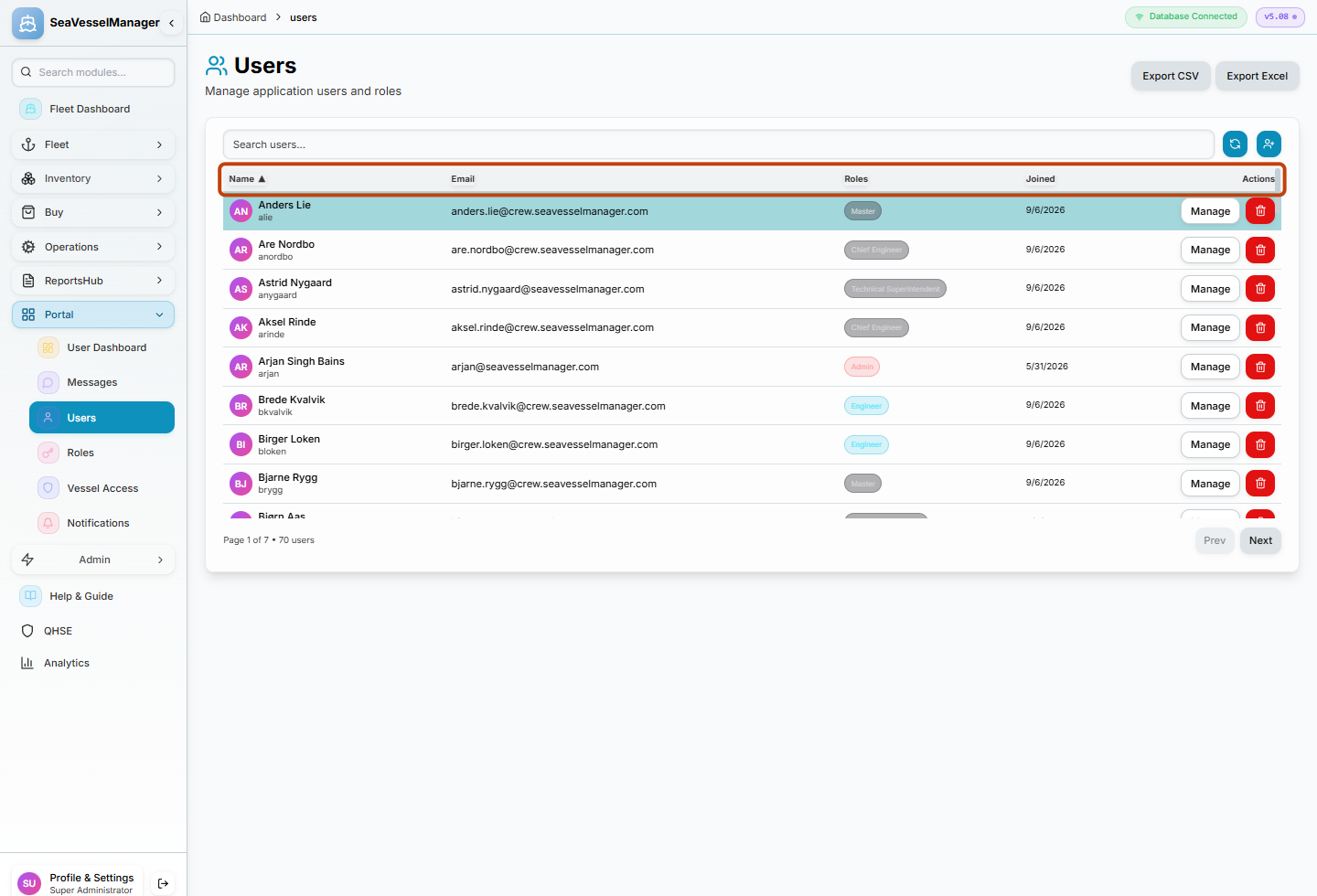
The highlighted headings identify the account details available without entering an editor. -
Read the account row and role badge
Locate the existing user's row and compare the name and username before reading Roles.
In the illustrated demo, Anders Lie has username alie and a Master role badge. Your account names and assignments will differ.
Leave Manage, the trash icon and the create-user icon untouched.
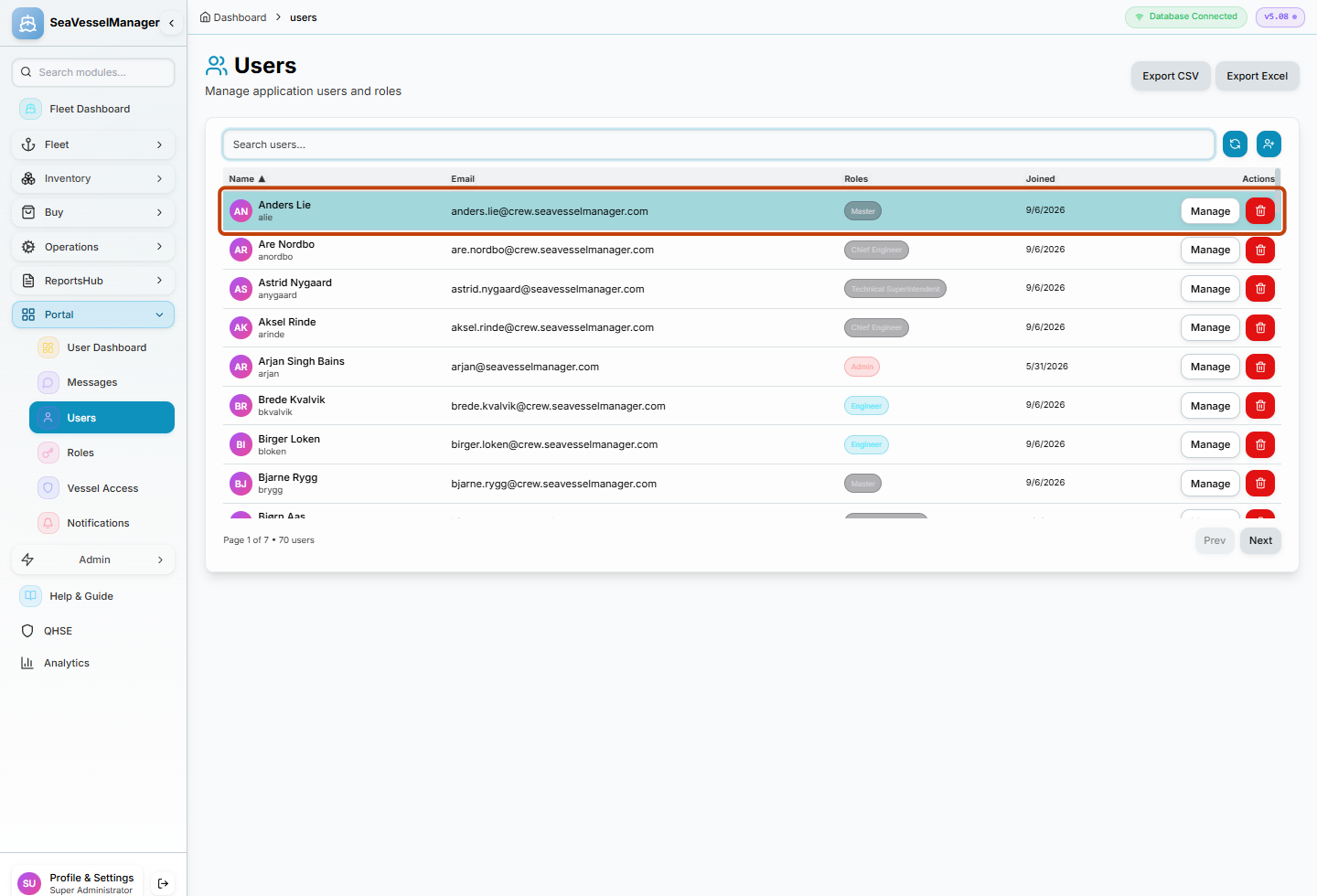
Read the assigned role directly from the row; no account editor is needed.
Result
You have identified an existing account and read its assigned role badges without changing the account.
FAQs
Do I need to click Manage to read a role?
No. The Roles column shows the assigned role badges in the list. Manage opens editing controls and is not part of this read-only procedure.