Administration
Inspect a role's module permissions without saving
Find an existing role, inspect its module action checkboxes and cancel the permission editor unchanged.
Overview
Roles & Permissions includes a searchable permission matrix inside Edit Role. Use it carefully for an access review: searching and expanding sections does not grant permissions, but the nearby checkboxes and bulk controls do change the draft.
Before You Start
- Use an authorized role-administration account. This procedure was verified as superadmin; reading the role list requires modules.roles.view.
- Choose an existing role. The example inspects Viewer, not the permissions of the signed-in superadmin.
Step-by-Step Instructions
-
Find the existing role
Expand Portal and select Roles, or open /roles.
In Search roles..., enter the role name. The example enters Viewer and shows one matching row.
Use the pencil icon in that row, whose tooltip is Edit Role. Do not use Create Role or the trash icon.
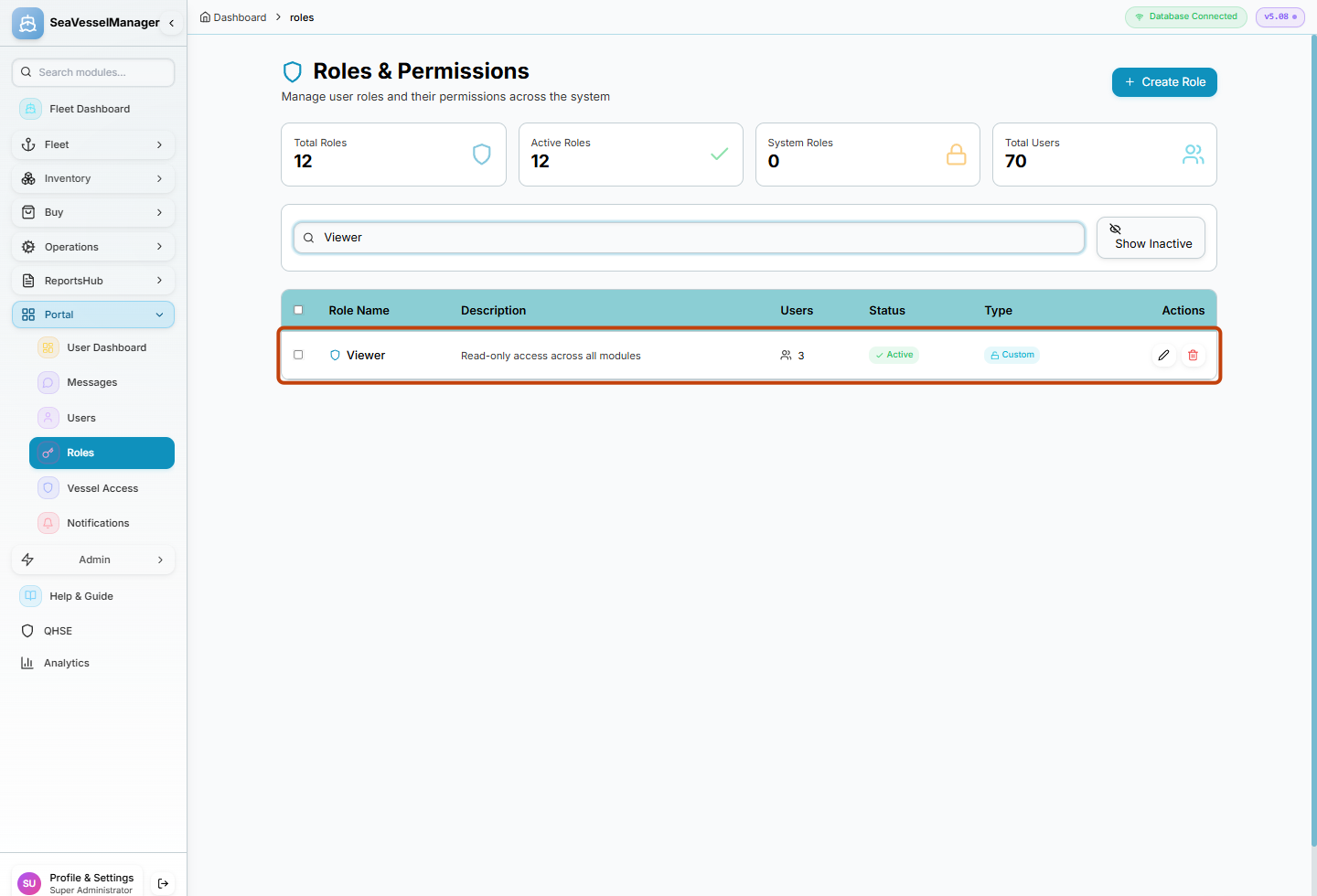
Choose the existing role's Edit Role pencil after confirming the matching row. -
Inspect the module actions and cancel
In Edit Role, expand Permissions.
In Find a module, e.g. spare parts, enter users. Read the Users module under Portal and its View, Create, Edit and Delete checkboxes.
In this demo all four Users actions are unchecked for Viewer. The role description alone is not proof that this module is accessible.
Do not toggle any checkbox or use All, View, None, Clear All or Save Changes. Select Cancel when finished.
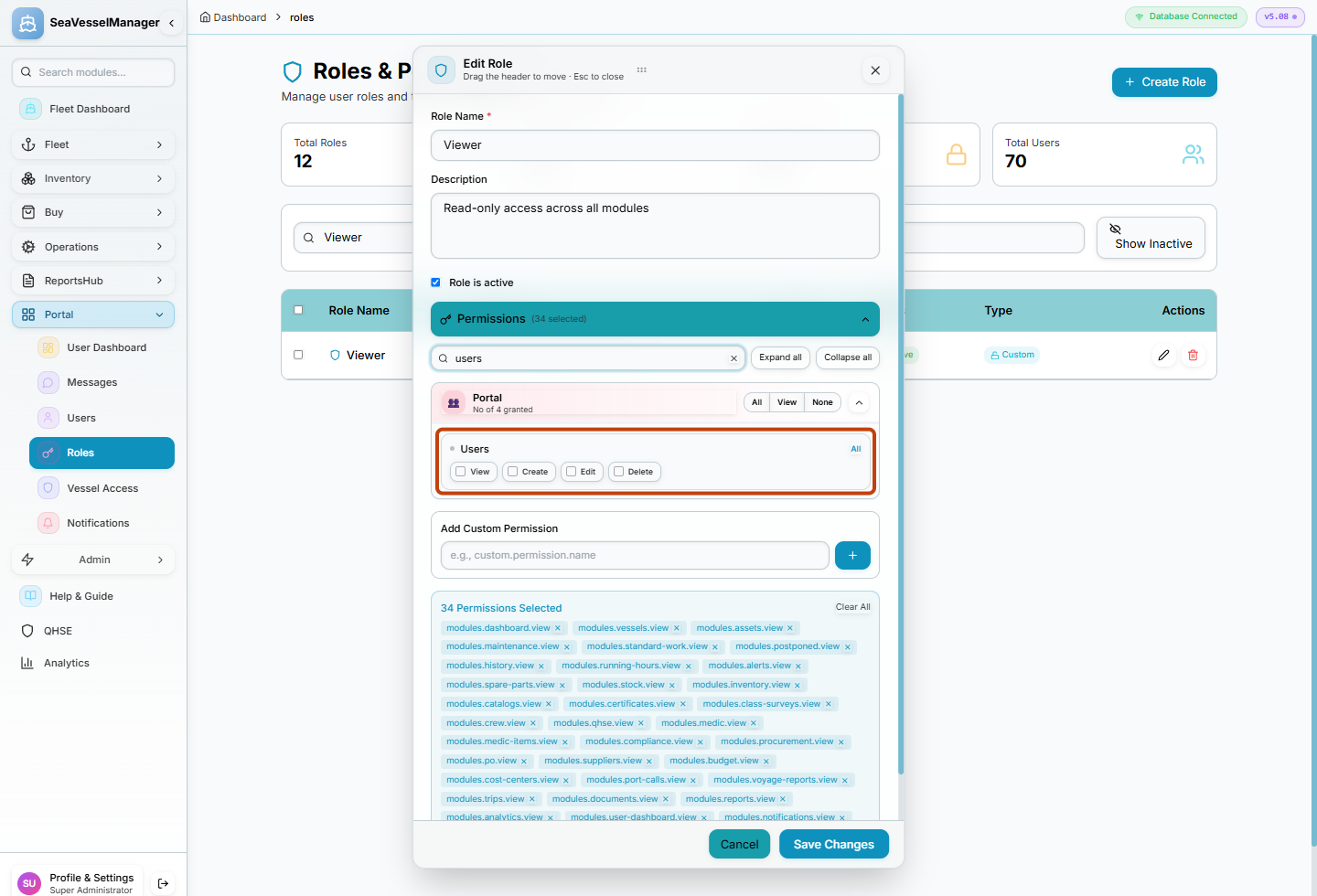
The module action checkboxes show the current draft loaded from the role; leave them unchanged and cancel.
Result
You have inspected one role's module action permissions and closed the editor without saving or changing any grants.
FAQs
Does the Viewer description guarantee access to Users?
No. In the verified demo, the Viewer description says read-only access across all modules, but its Users checkboxes are all unchecked. Inspect the configured actions rather than relying on the description.