Settings
Read the Company Theme settings without changing appearance
Review the company theme enablement, brand color, base mode and explanatory note without previewing or saving a theme.
Overview
System Settings separates your personal Appearance selection from the Company Theme controls. This guide reads the company section only and leaves both personal and shared appearance unchanged.
Before You Start
- Use an account with modules.settings.edit to see the Company Theme management card. The illustrated session uses superadmin.
- Open System Settings through Profile & Settings or /settings, not the separate Admin Settings tools page.
Step-by-Step Instructions
-
Locate the company-wide controls
Open Profile & Settings at the bottom of the sidebar, or navigate to /settings.
Find the Company Theme card beside Appearance. Read whether Enable company theme for all users is checked; it is unchecked in the illustrated demo.
Read the displayed Brand Color, selected Base Mode and existing Palette preview without clicking or changing these controls.
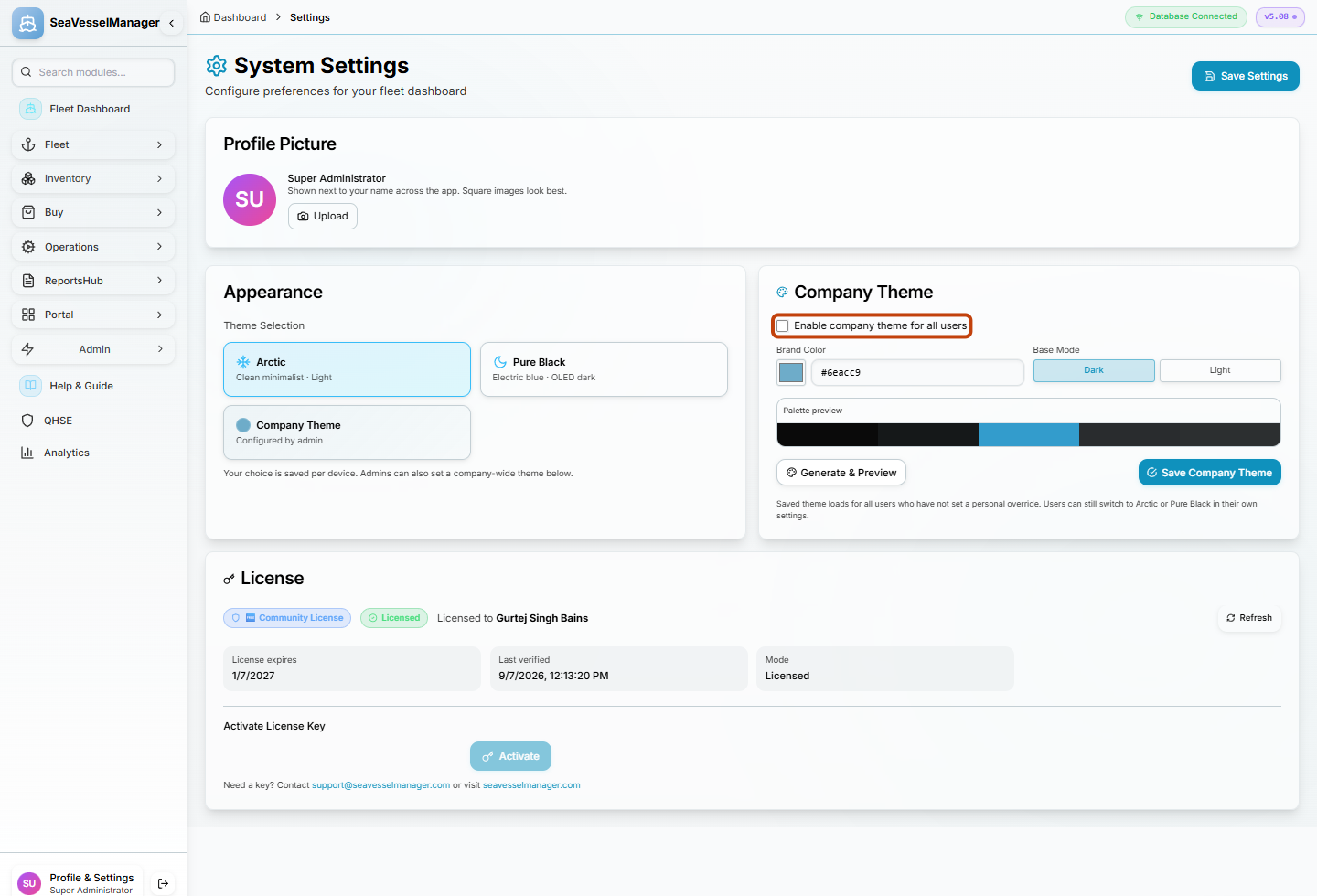
Read the existing enablement state; do not toggle it. The adjacent credential section is omitted from this capture. -
Read how the company setting affects users
Read the note below the company theme buttons: the saved theme loads for users who have not set a personal override.
The note also explains that users can still switch to Arctic or Pure Black in their own settings.
Leave Generate & Preview, Save Company Theme and Save Settings untouched. Do not select a different theme in Appearance.
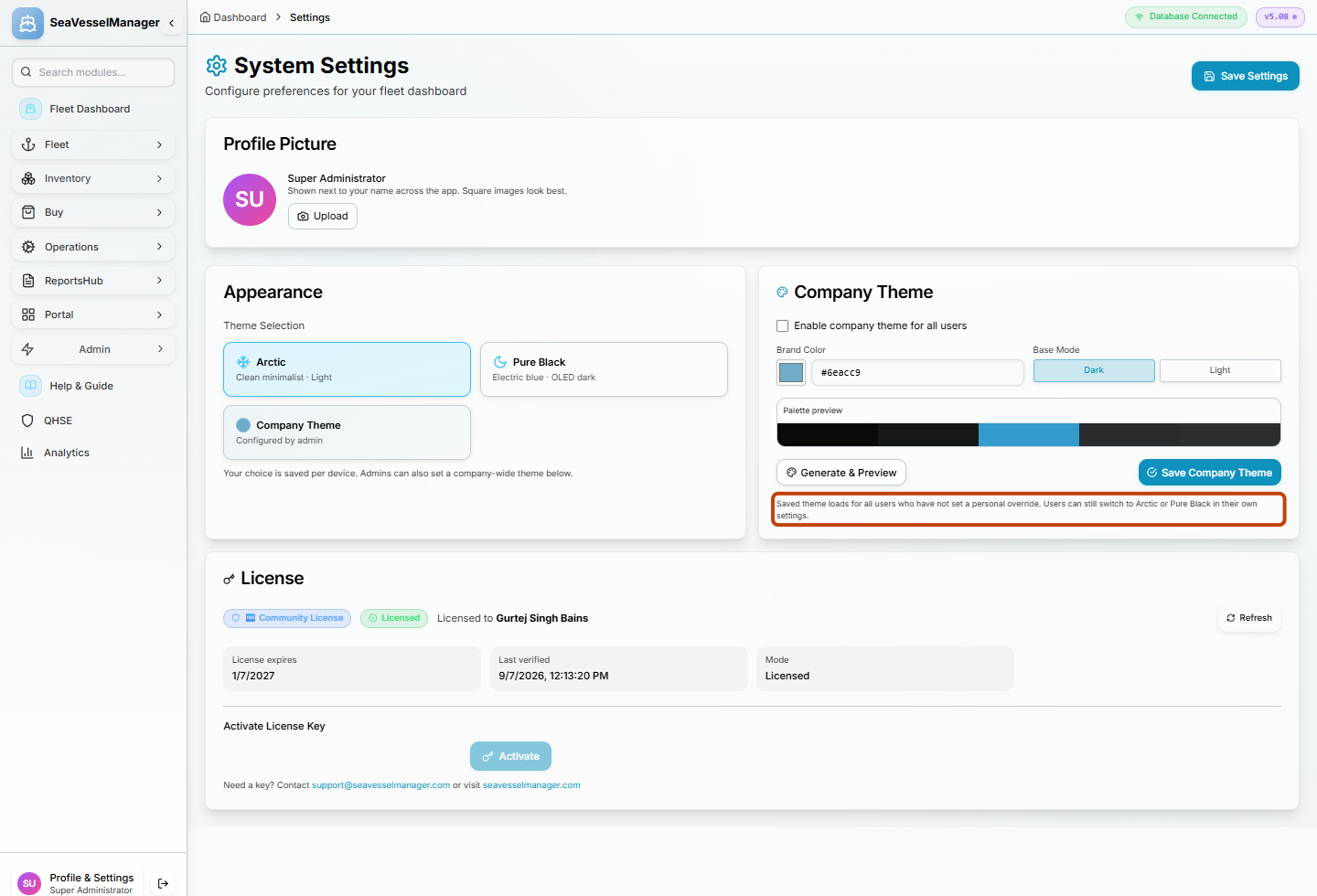
The highlighted note explains the relationship between the shared theme and personal overrides.
Result
You have reviewed the existing company-theme settings and their scope without previewing, enabling or saving a theme.
FAQs
Is the Company Theme tile under Appearance the management card?
No. The Appearance tile is a personal theme choice. The separate Company Theme card contains the company enablement checkbox, Brand Color, Base Mode and company save controls.