Settings
Read the installed license status and dates
Find the License card in System Settings and read the displayed license type, status, expiry and last-verification date.
Overview
The License card reports the installation's current licensing information. Reading this card does not require entering a license key or activating a new license. This procedure does not perform a manual refresh or contact support.
Before You Start
- Sign in to the installation and open System Settings. The illustrated workflow was verified as superadmin; availability in other roles was not tested.
- Allow the License card to finish loading its status from the backend.
Step-by-Step Instructions
-
Find the License card
Open Profile & Settings at the bottom of the sidebar, or navigate to /settings.
Scroll to License. Read the license-type badge, status badge and Licensed to label if present.
The approved demo displays Community License and Licensed. These values describe that installation, not a required state for all customers.
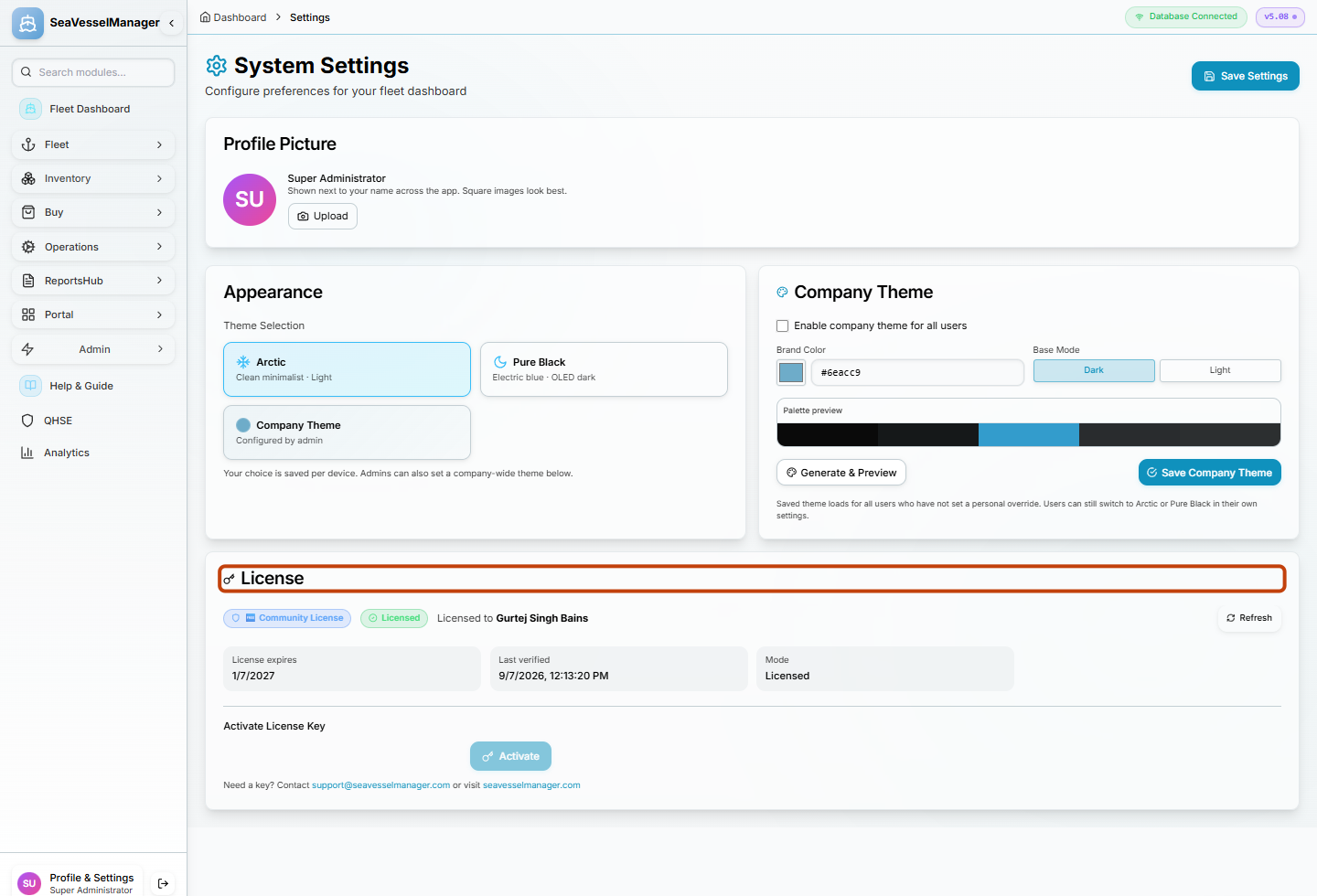
Find the License section and read its badges. Credential inputs are not shown in this capture. -
Read the status dates and mode
Read License expires, Last verified and Mode in the information boxes when those fields are present.
Use the dates displayed by your own installation. Last verified is the displayed verification timestamp, not a claim that verification was performed by opening this guide.
Leave the activation-key field, Activate and Refresh untouched; no license change is needed to finish the review.
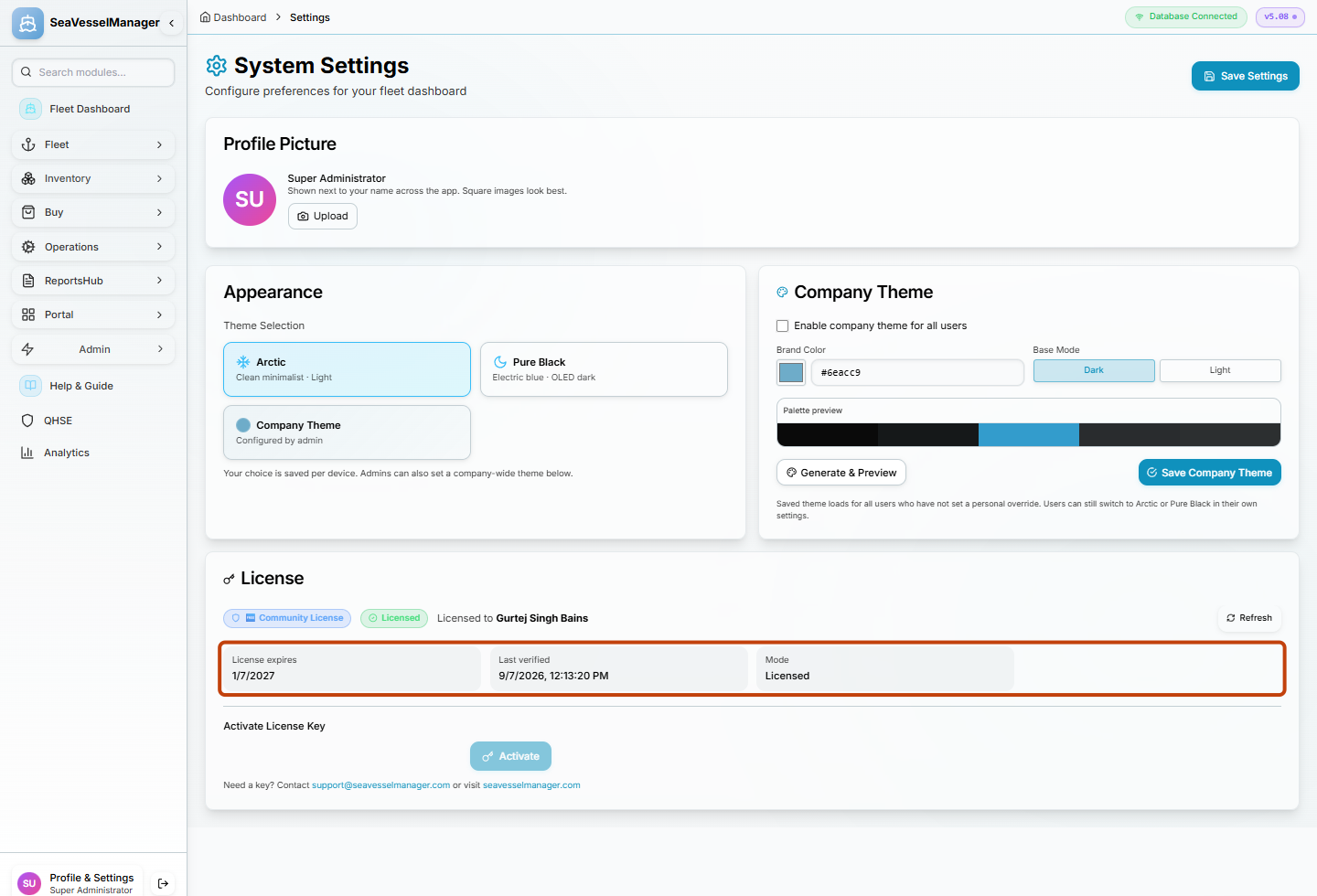
The highlighted boxes provide the installation's displayed licensing dates and mode.
Result
You have read the installed license's displayed status and dates without activating, replacing or refreshing the license.
FAQs
Must I enter a key to read the current status?
No. The status and information boxes appear above Activate License Key. This read-only check leaves the activation form untouched.