Administration
Filter login audit events and read one event's details
Use type, action and text filters in System Audit Log, then expand and collapse an existing login event.
Overview
System Audit Log lets an authorized administrator narrow the displayed event list. This guide reviews an existing login event and its metadata; it does not generate new events, export records or open raw JSON snapshots.
Before You Start
- Sign in as admin or superadmin with modules.audit-log.view. The illustrated session is superadmin.
- Have at least one existing login event for the account being reviewed. Example account names and event times are demo-specific.
Step-by-Step Instructions
-
Narrow the list to the account's login events
Expand Admin and select Audit Log, or open /audit-log. Confirm the System Audit Log heading.
Change All Types to Auth and All Actions to LOGIN. Leave All Vessels unchanged for this account-level check.
In Search description, user, entity..., enter the account text. The example enters superadmin and shows three matching login entries.
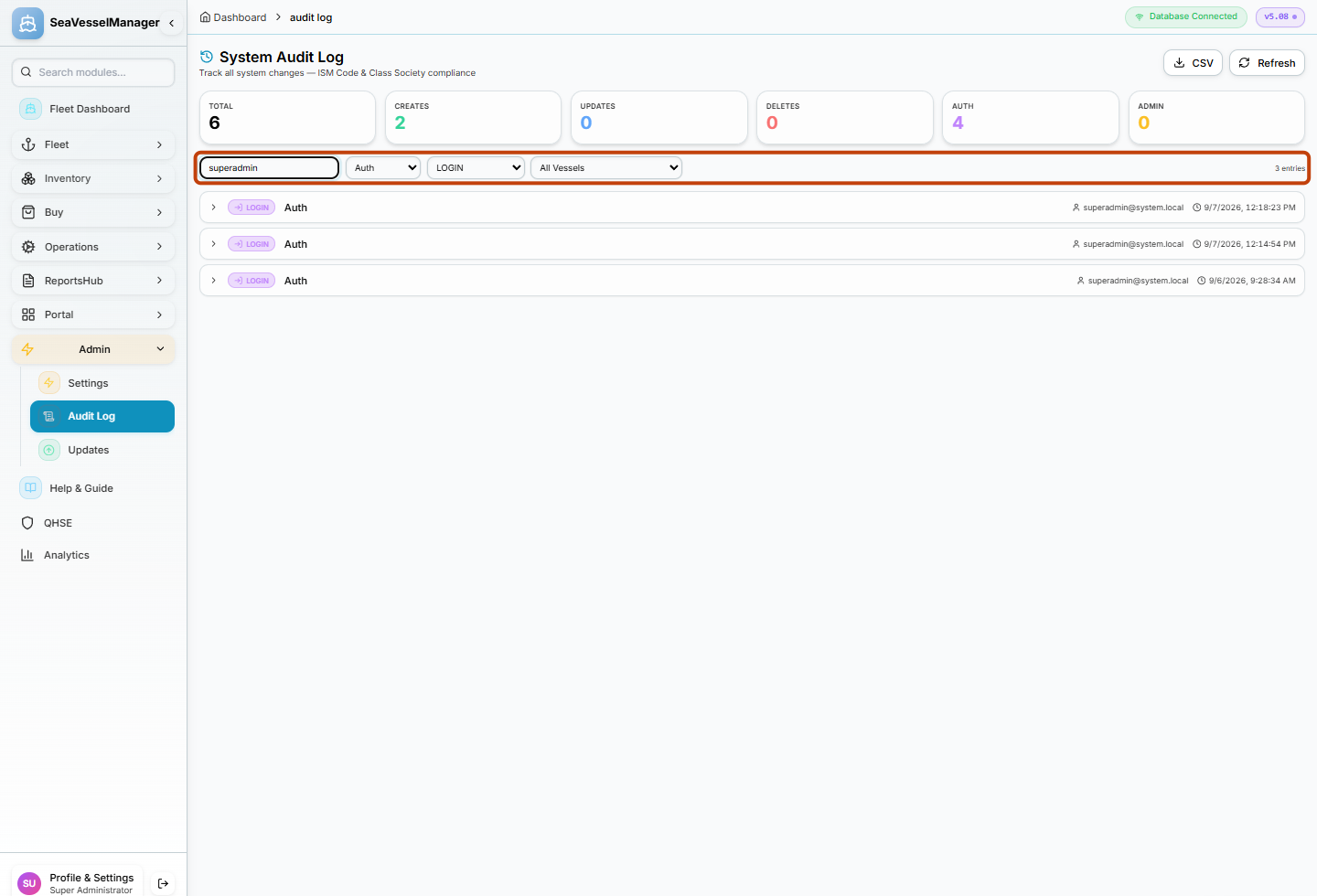
Combine the type and action selectors with the text search to narrow the event list. -
Expand a matching event and read its metadata
Select a matching LOGIN row or its leading chevron to expand it.
Read the login description and the available ID, Source, IP and UA metadata below the row. The timestamp remains visible in the row header.
Select the same row again to collapse it. Do not open Show Raw JSON or use CSV for this procedure.
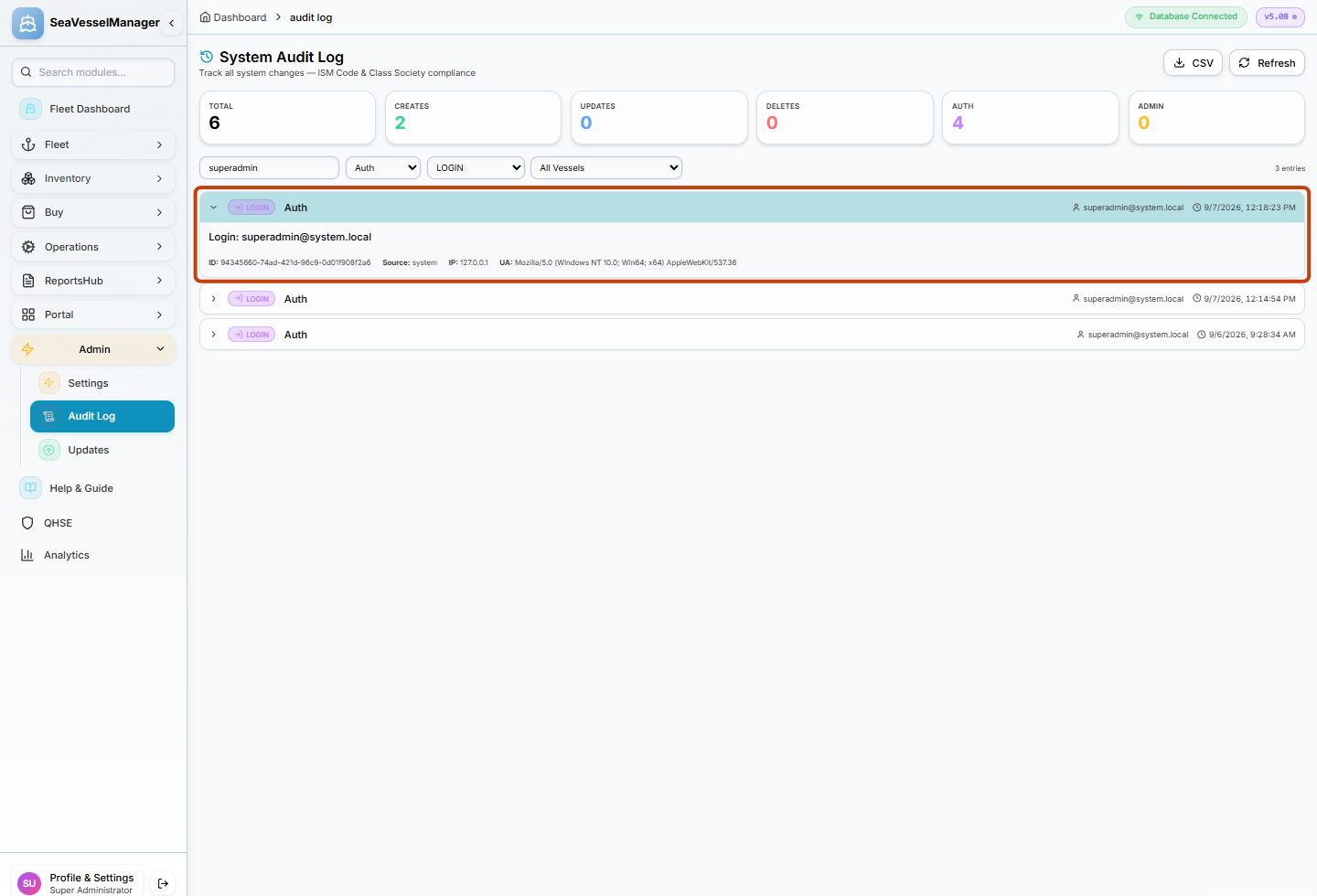
Expansion reveals the existing event's details without modifying the record.
Result
You have located a matching login event, read its available metadata and collapsed it without changing audit data.
FAQs
Why can Total be larger than the number of matching entries?
Total comes from the audit summary, while text search filters the loaded event list. Type and action filters narrow that list, but do not make the summary cards equal the visible match count.