Crew
Find a crew member and open their profile
Use the crew list for a vessel and department to locate a crew member and open their profile.
Overview
The Crew module lists assigned personnel for a selected vessel and department. This guide filters the list and opens a profile without changing assignments or records.
Before You Start
- Sign in with read access to the Crew module. The verification session used superadmin.
- Select the vessel and department you want to search.
Step-by-Step Instructions
-
Open Crew and select the vessel and department
Open the Crew module from the sidebar.
Select the vessel (for example BB COASTER) and the department or rank (for example Master).
Wait for the crew list to load.
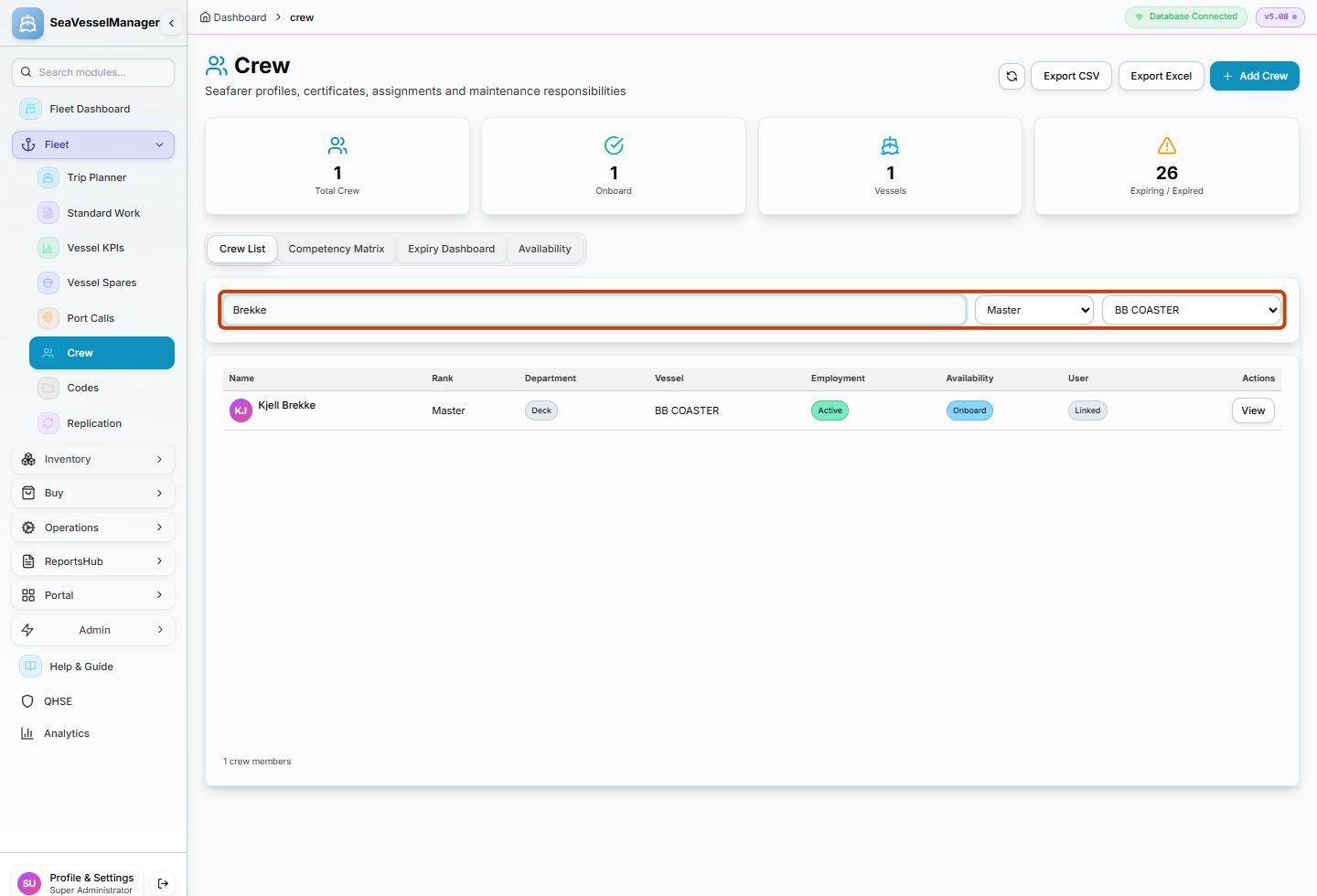
The crew list is scoped by vessel and department before searching. -
Search the crew list and open the profile
Enter the crew member's name in the search field. The example searches for Brekke.
Click View on the matching row.
Read the profile details that open without making changes.
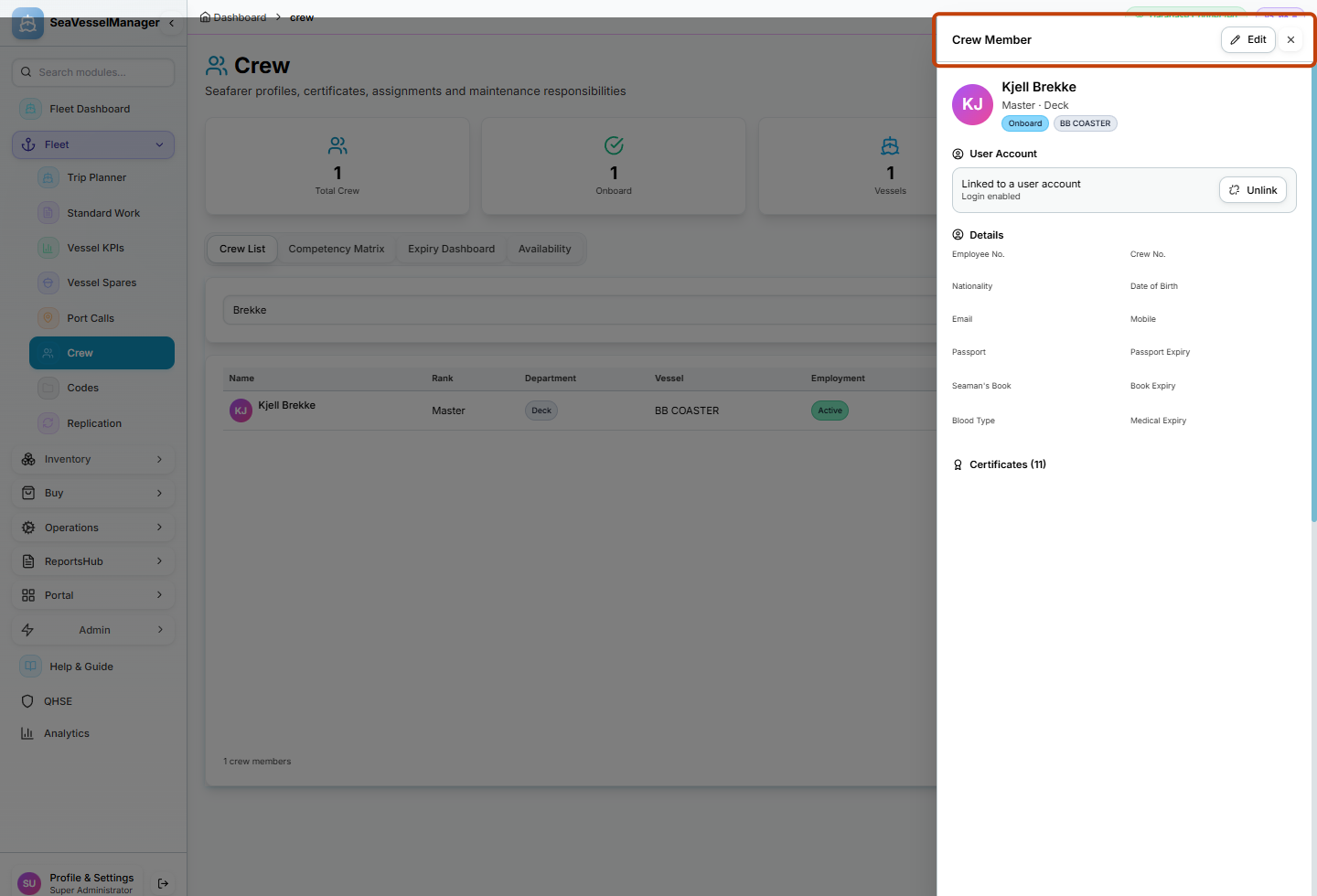
The matching row's View button opens the crew member profile.
Result
You have located a crew member in the list and opened their profile without changing any data.
FAQs
Can I search by rank instead of name?
The list is filtered by department or rank first. Use the search field to narrow within that selection.